Export to Resolume
Hand your mapping off to Resolume Advanced Output XML, review the sACN-to-Art-Net conversion, and keep Filament current with the in-app updater.
When you'd rather have Resolume drive your rig, Filament exports your mapping as an Advanced Output XML file that Resolume reads directly. Open it from File → Export XML… (or Cmd/Ctrl + E).
Export is paid-only. You can open the dialog and review the preview on the trial, but writing the file is blocked until you activate — see Licensing and Trial.
What the export contains
- every Surface in the project
- each slice's geometry and DMX channel assignment
- output rectangles for Resolume's sampling
- optionally, your fixture definitions for Resolume's fixture library
The export dialog
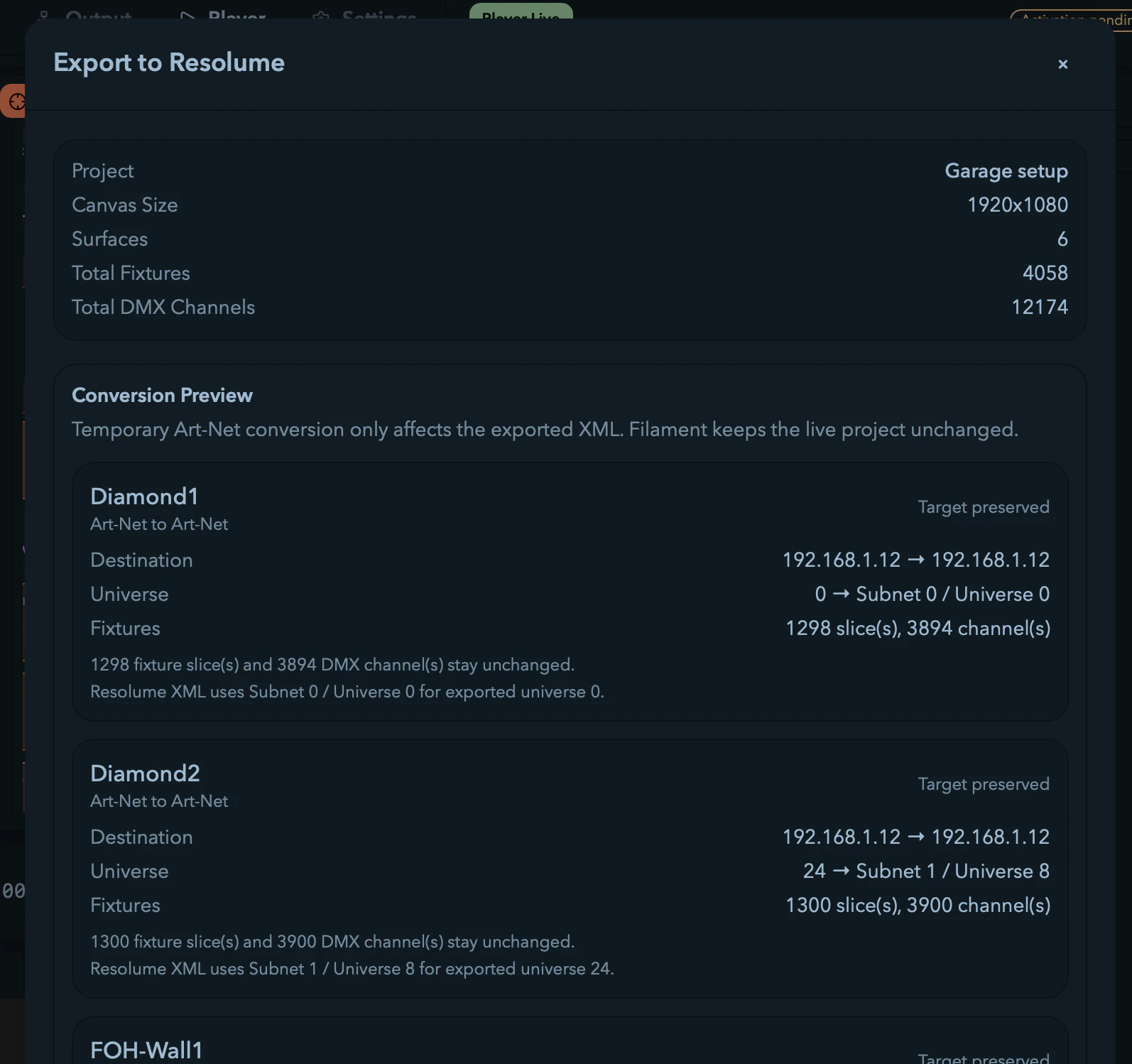
Opening the dialog saves the project, then loads and validates a preview. The summary panel shows Project, Canvas Size, Surfaces, Total Fixtures, and Total DMX Channels.
Validation and readiness
If the project isn't ready, Filament shows Cannot export yet and lists the blockers — usually missing or invalid fixture data, bad geometry, or channel-range problems — and the Export button stays disabled until they're fixed. Warnings appear separately; they don't block export, so you can review and decide before writing the file.
Resolume export is Art-Net-only and validates against the same readiness rules used elsewhere in Filament. For the full preflight workflow, see Output & DMX Routing.
Conversion preview
The Conversion Preview shows one card per Surface so you can audit exactly what will be written. Each card lists the source-to-export protocol (for example sACN to Art-Net), Destination, Universe (the absolute universe mapped to Resolume's subnet/universe form), Fixtures, and a target-IP status tag:
| Tag | Meaning |
|---|---|
| Target preserved | the Surface keeps its existing Art-Net target IP |
| Target inferred | Filament derived the target IP from the saved output settings |
| Target unresolved | no target IP could be determined — configure the destination in Resolume after import |
Temporary Art-Net conversion for sACN
Resolume's XML is Art-Net-shaped, but Filament won't make you reconfigure a live sACN project just to export. When any Surface uses sACN, you'll see a Temporary Art-Net conversion required notice. Tick the confirmation checkbox — until you do, the Export button stays disabled — and the XML comes out Art-Net-compatible while your live project stays sACN in the editor and Player.
Export Audit Summary
Below the preview, the Export Audit Summary groups every change Filament made to fit Resolume's format (only non-empty groups show):
| Section | What it lists |
|---|---|
| Converted states | protocol conversions and inferred Art-Net targets applied for this export |
| Preserved values | fixture XML, slice layout, universes, and target IPs carried through unchanged |
| Normalized values | universes rewritten into Resolume's subnet/universe form, and target IPs normalized |
| Unresolved values | settings Filament couldn't resolve, such as an unset Art-Net target IP |
Fixture-library export
Also export fixtures to Resolume Fixture Library is on by default, writing the fixture definitions your project depends on alongside the XML. Clear it if the receiving Resolume already has them. This needs a configured Resolume fixtures directory; if it isn't set, the export reports Fixture directory not set — set the path in Settings.
Completing the export
Click Export (or Confirm Temporary Art-Net Export when a conversion is pending) and choose a destination; Filament defaults the file name to your project name and writes the .xml. On success it switches to Export Complete and reports the saved path, the Surface count, the exported slice total, and any warnings — confirming, if a conversion was used, that the live project wasn't changed.
In-app updater
Filament can install updates without a manual download. When a newer release exists, the Update Available dialog shows your Current and Available versions plus any release notes.
By default it checks on launch. If you'd rather no update dialog ever appear while you're setting up for a gig, turn off Check for updates on launch under Settings → General → Software update — you can still check by hand from there. Filament never downloads or restarts itself without your say-so either way.
- Update Now downloads and installs, then relaunches automatically on success. A failure keeps your current session intact.
- Check Again re-runs the check from inside the dialog.
- Later dismisses this version — it won't prompt again for the same release, but a newer one will.
Settings
Configure Filament — auto-save, theme, Resolume and media paths, audio and MIDI devices, OSC, tempo sync, your license, and diagnostics.
Keyboard Shortcuts
Every Filament shortcut — canvas tools, the Player transport, the Session grid, the Timeline, library navigation, and the app-wide menu accelerators.