Settings
Configure Filament — auto-save, theme, Resolume and media paths, audio and MIDI devices, OSC, tempo sync, your license, and diagnostics.
Settings is split into nine categories down the left rail. Most you set once and forget; Paths & Media, Audio, MIDI, OSC, and Tempo Sync are where you wire up the folders and hardware the Player relies on. Settings opens on General, and any unknown sub-path falls back to it, so deep links like /settings/audio stay stable.
| Category | What it covers |
|---|---|
General | Updates, auto-save, preview frame rates, and the behavior toggles below |
Appearance | Theme and tooltips |
Paths & Media | Resolume folders and media roots |
Audio | Audio-reactivity input, gain, and device pickers |
MIDI | Which controllers are active |
OSC | Network remote control — server, feedback, and address browser |
Tempo Sync | External clock sources |
License | License state and key |
Diagnostics | Application status and logs |
General
The catch-all for how the app behaves. Most of it you'll set once.
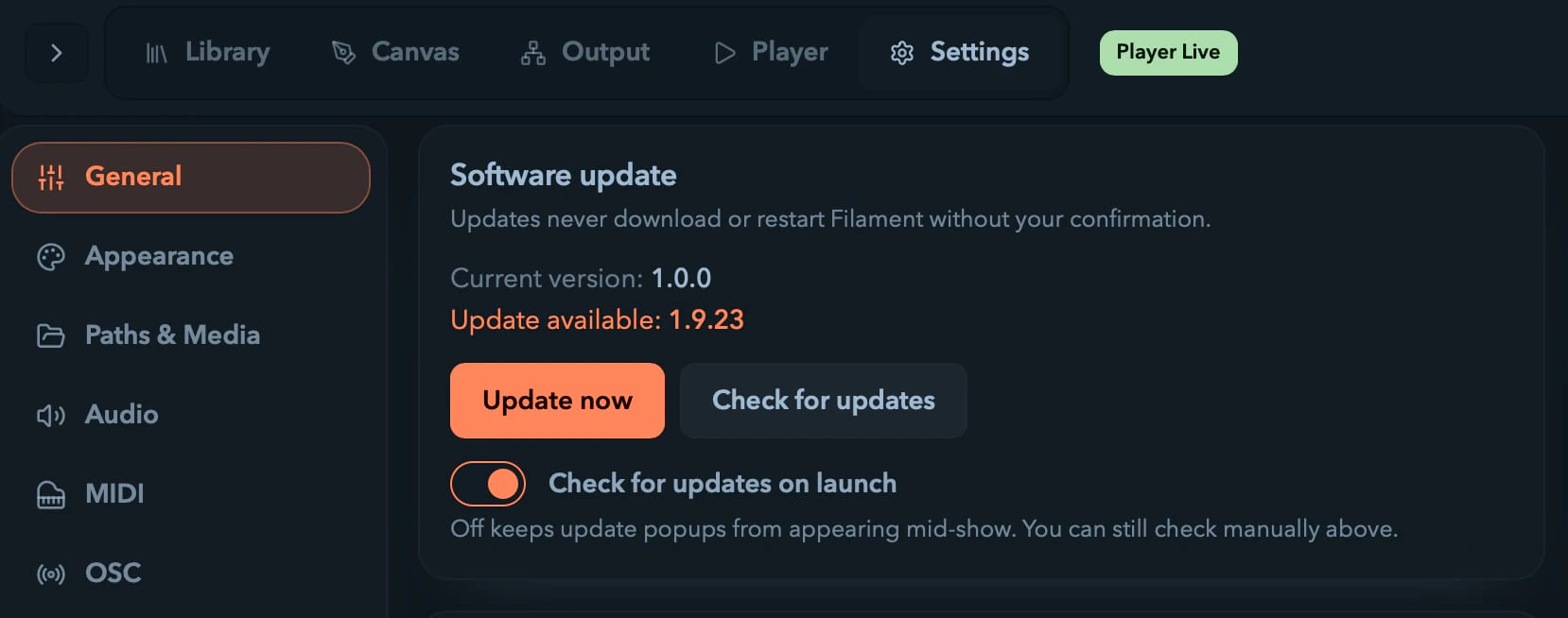
Software update
Shows your current version, whether an update is waiting, and buttons to check or install. Check for updates on launch is a toggle — turn it off and no update popup can appear mid-show. You can still check by hand. Filament never downloads or restarts itself without you saying so.
Project auto-save
On by default, on any whole-minute interval from 1 to 60 (default 1). Your work saves to a local database — no cloud, nothing to sign into. Making risky edits you might want to abandon? Turn auto-save off for a bit and save by hand.
Preview
Frame-rate caps for the on-screen previews: one for the main output preview, one for the secondary ones. Higher is smoother and costs more GPU and CPU. This affects previews only, never the DMX output — the show doesn't slow down because you turned a preview up.
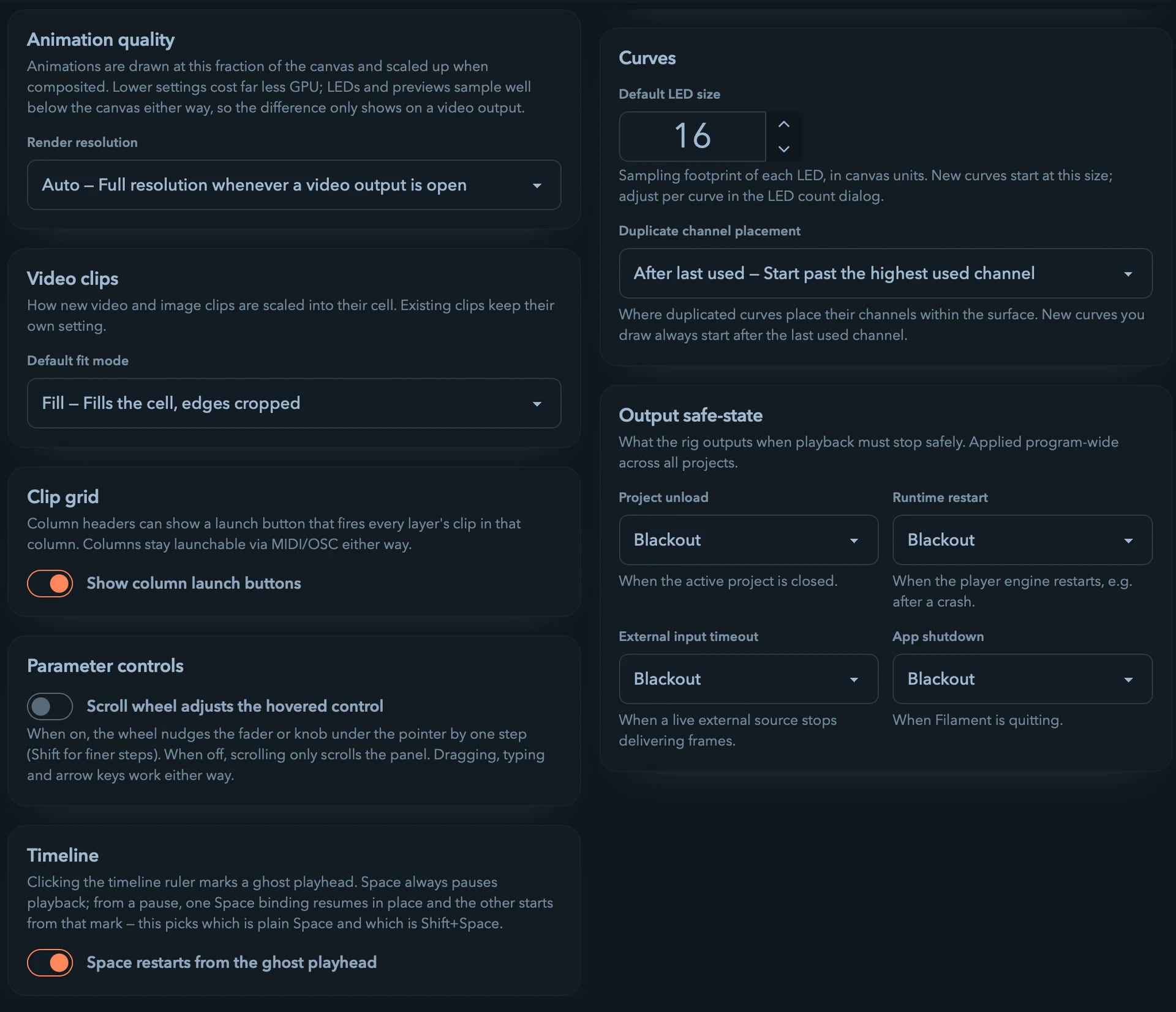
Video clips
Default fit mode for newly added video and image clips — how they scale into their cell. Clips already on the grid keep whatever they were set to.
Clip grid
Show column launch buttons puts a launch button on each column header, firing every layer's clip in that column. Off, the headers stay clean; columns remain launchable from MIDI, OSC, and the Key Map either way.
Parameter controls
Scroll wheel adjusts the hovered control. Off by default, and deliberately so: on, an attempt to scroll a packed effects panel silently rewrites whichever knob was under the pointer. Turn it on if you want it — plenty of people do — and the wheel nudges the fader or knob under the cursor by one step, Shift for finer. Dragging, typing, and arrow keys work either way. The choice is per machine.
Timeline
Clicking the timeline ruler drops a ghost playhead. Space always pauses; from a pause, one of Space / Shift+Space resumes in place and the other restarts from that mark. This setting picks which is which — a genuine matter of taste, so it's yours to set rather than ours to decide.
Curves
- Default LED size for newly drawn curves.
- Duplicate channel placement — where a duplicated curve's channels land: Fill gaps reuses the first free channels between existing fixtures, After last used starts past the highest used channel. Fill-gaps keeps a patch tight; after-last keeps it readable. Pick the one that matches how you think about your rig.
Output safe-state
The per-event blackout / hold-last-frame policy — what the rig outputs when playback has to stop safely. Applied program-wide across all projects, and mirrored from the Output page so you can set it from either place.
Appearance
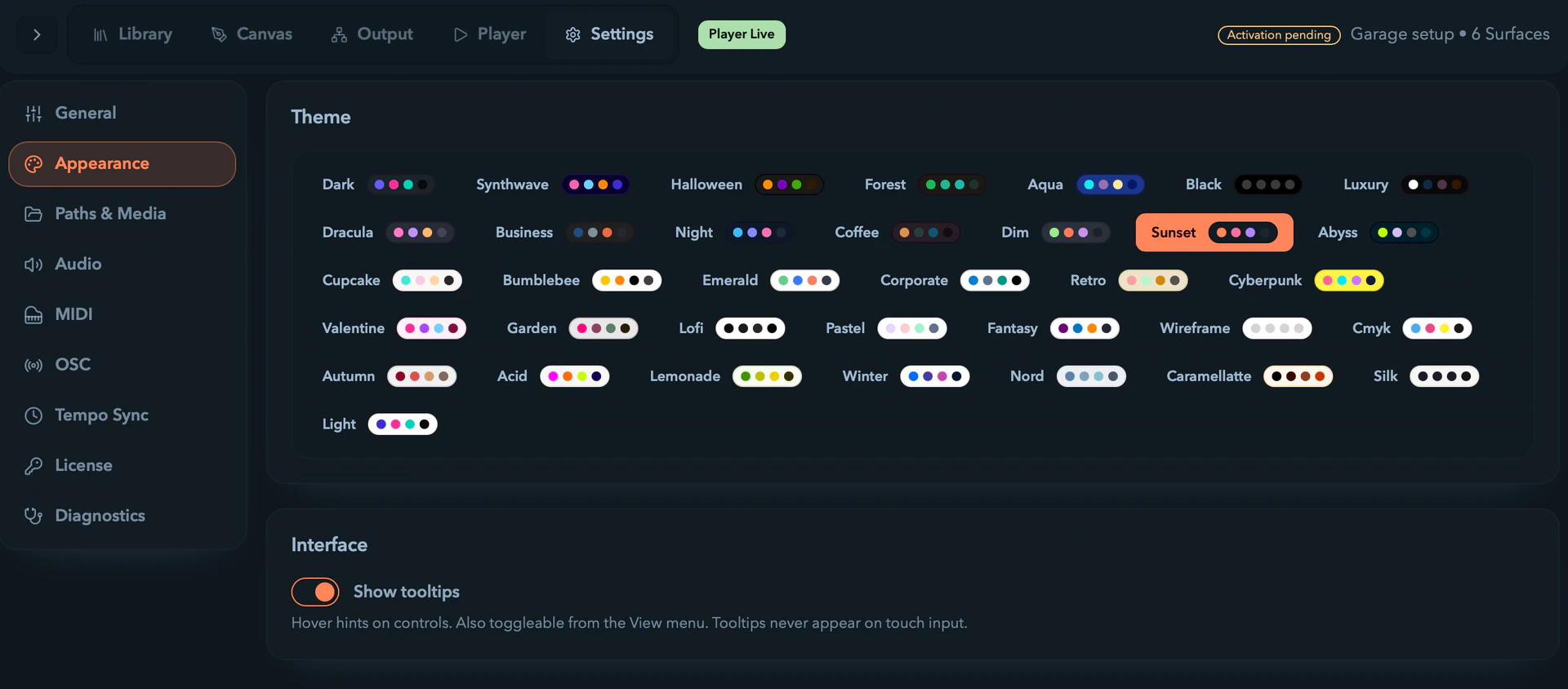
- Theme — a grid of swatches; each applies the moment you click it.
- Show tooltips — toggles the hover hints on controls (also in the View menu). Tooltips never appear on touch input.
Paths & Media
Resolume paths
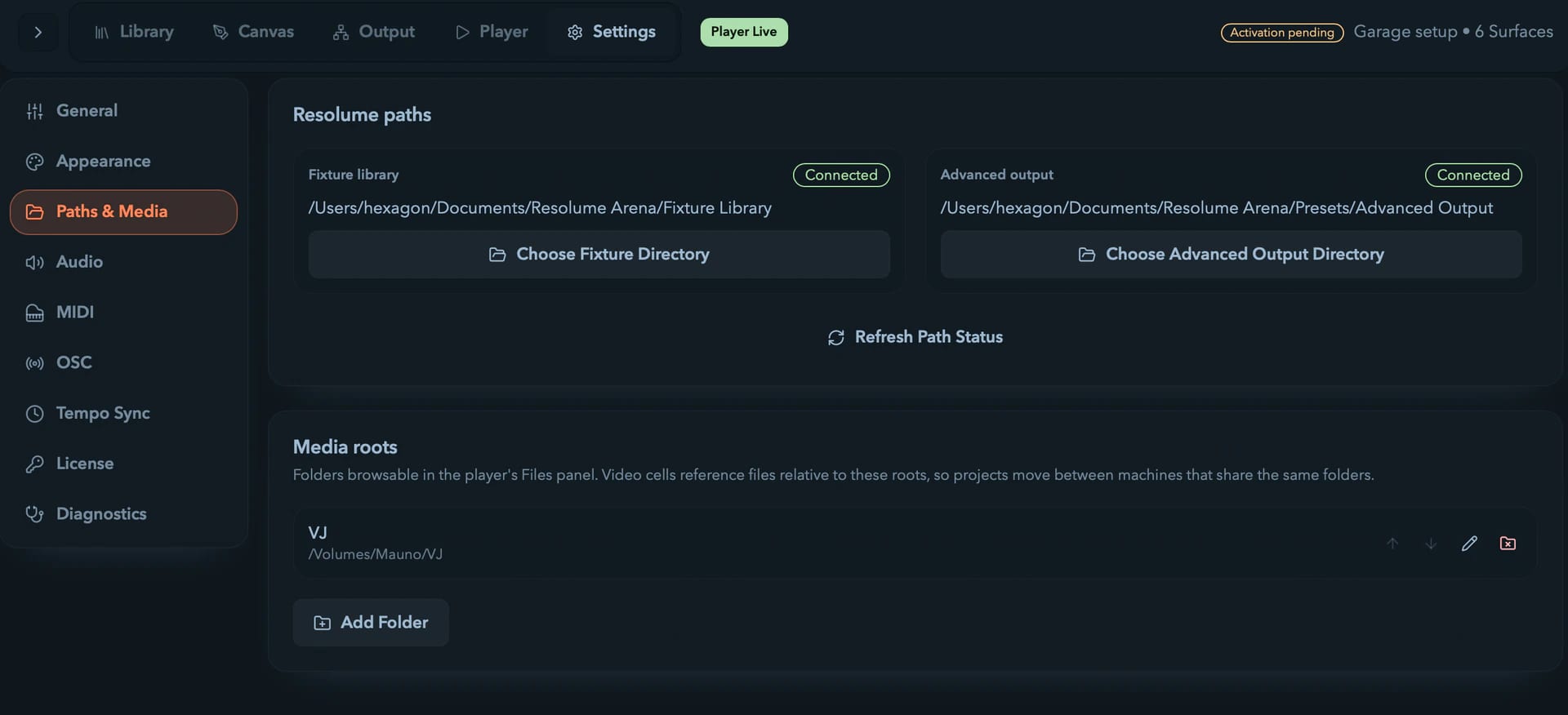
For exchanging fixtures and Advanced Output data with Resolume Arena, point Filament at two folders:
- Fixture library — where Resolume stores fixture-definition XML. With it set, you can import Resolume fixtures and export yours back.
- Advanced output — where Resolume stores Advanced Output configurations.
Use the Choose… buttons to set each path, then Refresh Path Status to re-check the connection.
Media roots
These are the folders browsable in the Player's Files panel (Video Clips). Video cells reference files relative to these roots, so projects move cleanly between machines that share the same folders.
- Add Folder registers a root, up to 16 total.
- Reorder a root with the up/down arrows, rename it (label only) with the pencil, or remove it with the remove icon.
Removing a root touches nothing on disk — cells that referenced it just show as missing.
Audio
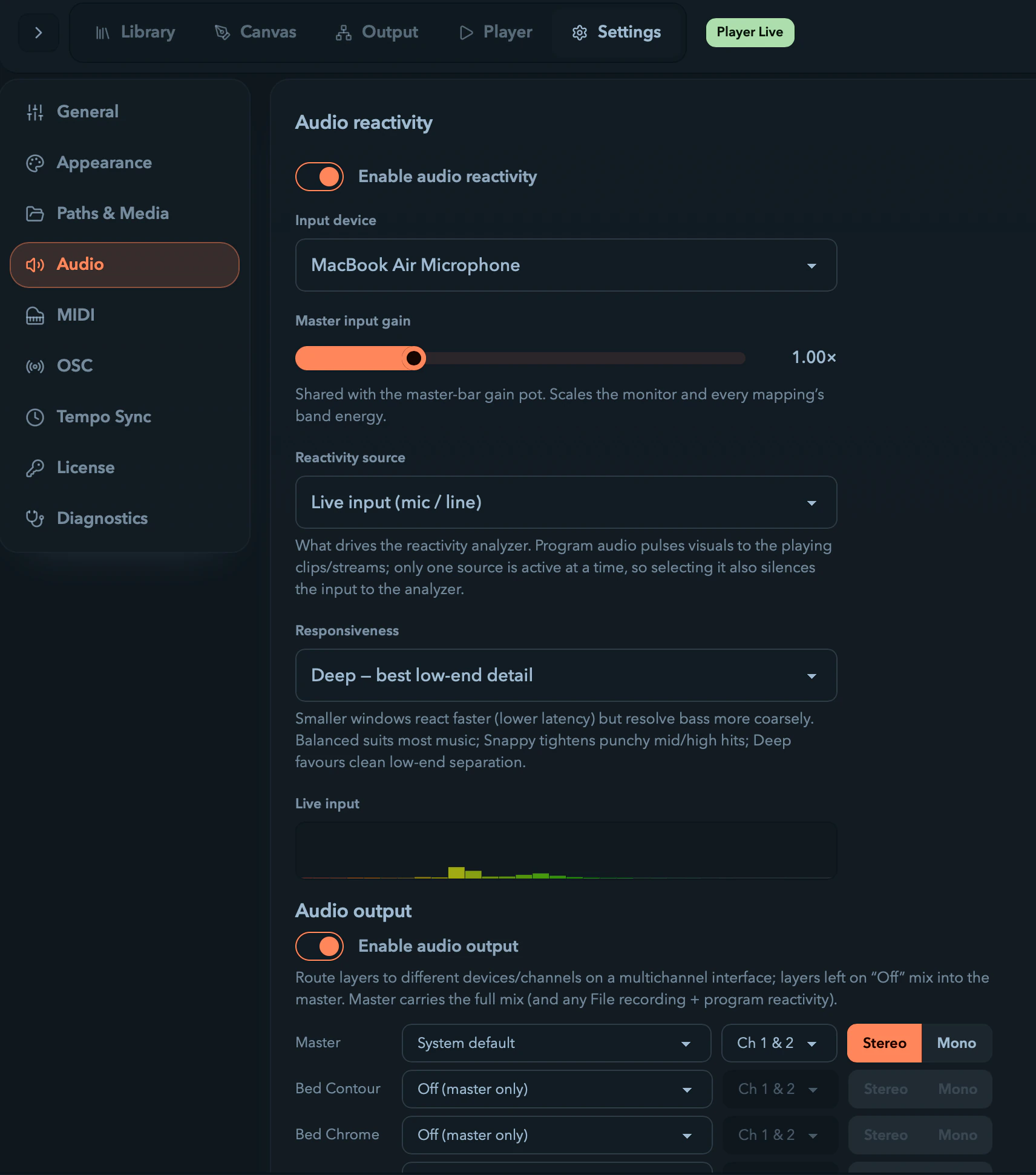
This card drives audio reactivity:
- Enable audio reactivity — on by default, but nothing is captured until you also pick an input device.
- Input device — which input Filament listens to, or None. An unplugged remembered device shows as
(disconnected), and reactivity rests at each mapping's minimum until it reconnects. - Master input gain — 0× to 4× (default 1×), shared with the master-bar gain pot; it scales the monitor and every mapping's band energy.
- Live input — a meter confirming signal in real time.
- Output device — a monitoring output, or None. Informational only; it doesn't change live DMX.
Hit Refresh devices after plugging something in. Device choices and gain are saved per machine, not per project.
MIDI
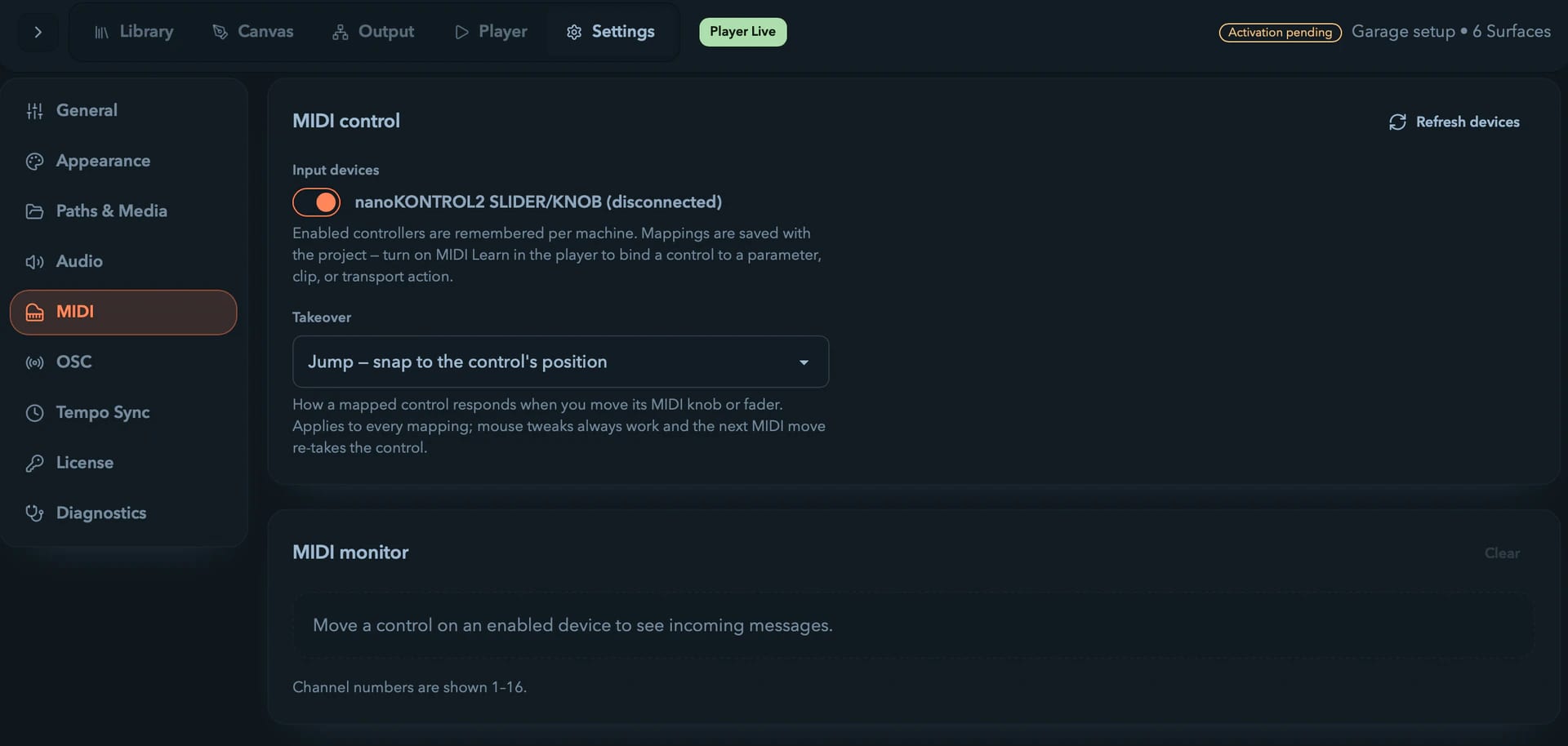
A toggle per detected controller switches it on or off; ones you enabled but later unplugged stay listed as (disconnected) so you can see they're still armed. Refresh devices rescans.
Which controllers are enabled is remembered per machine; the mappings themselves travel with each project. Bind controls with MIDI Learn in the Player — see MIDI control.
OSC
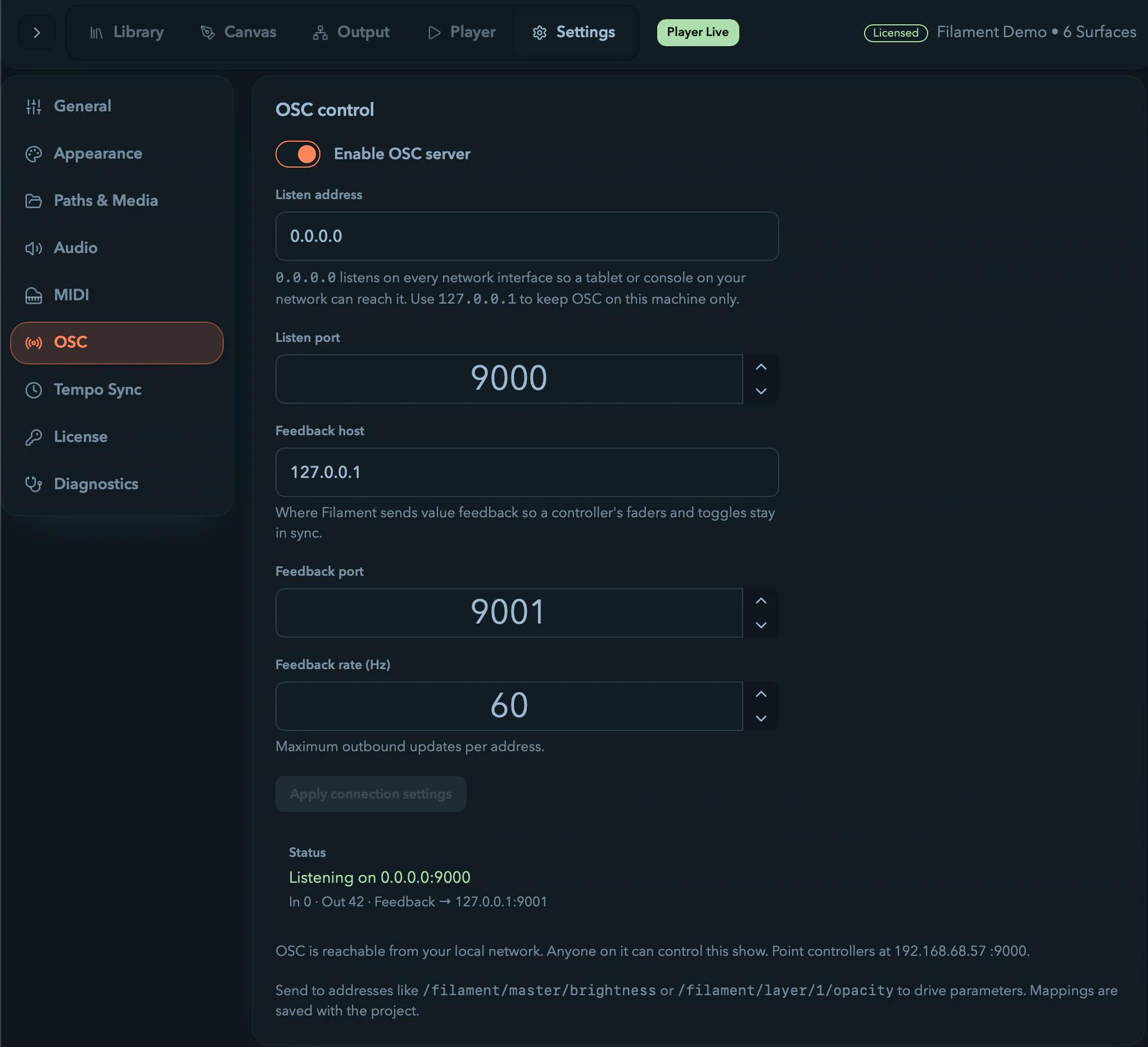
Turn on the OSC server to control Filament over the network, set the listen and feedback ports, and browse every address with its live value. 0.0.0.0 listens network-wide (for a phone or console); 127.0.0.1 keeps it local. The server config is remembered per machine. See OSC control.
Tempo Sync
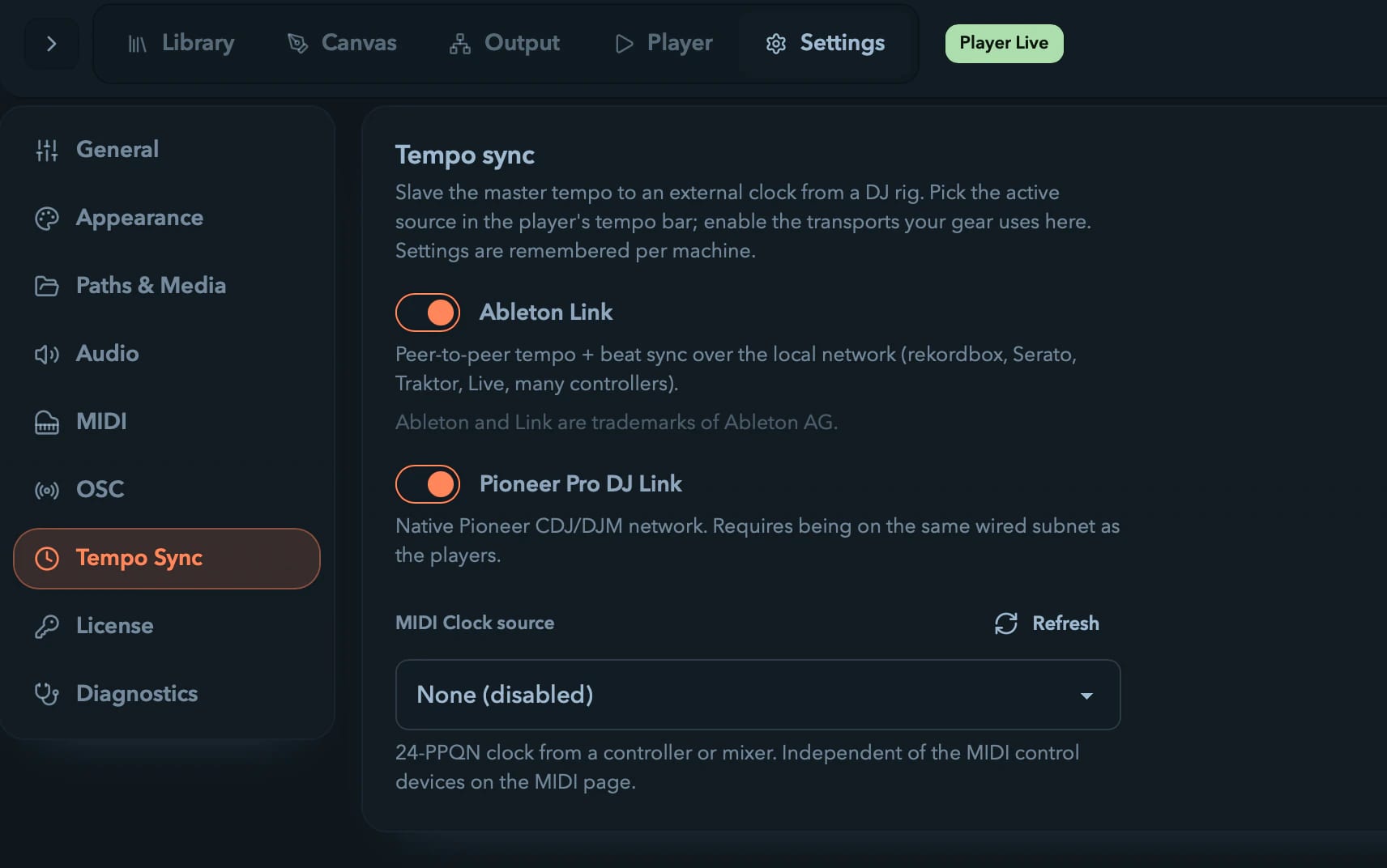
Enable the external clock sources your gear uses here; you pick the active source (and phase-lock) in the Player's tempo bar. See Tempo & Sync.
| Source | What it is | Notes |
|---|---|---|
| Ableton Link | Peer-to-peer tempo and beat sync over the local network (rekordbox, Serato, Traktor, Live, many controllers) | While Link is active and connected, the note under the toggle shows the live peer count |
| Pioneer Pro DJ Link | Native Pioneer CDJ/DJM network | Requires being on the same wired subnet as the players; the network-interface picker ships with the transport |
| MIDI Clock source | A 24-PPQN clock from a controller or mixer | Independent of the controllers on the MIDI page; None (disabled) turns it off |
Enabled sources are remembered per machine.
License
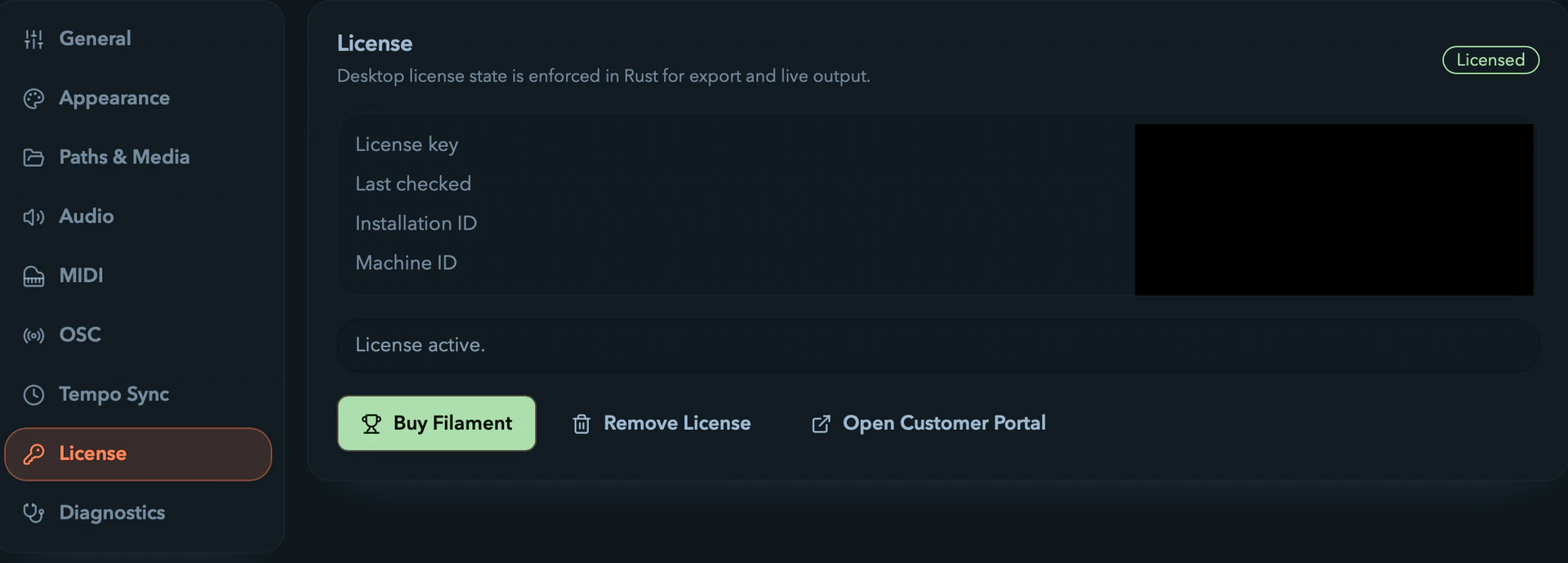
The desktop license state is enforced in Rust for export and live output. The card shows the current state as a badge:
| Badge | State | Meaning |
|---|---|---|
| Licensed | licensed_valid | Activated and verified |
| Licensed (offline-safe) | licensed_stale_offline | Running on the last verified receipt until the backend is reachable again |
| Activation pending | activation_pending | Key saved, waiting for the first successful online activation |
| Trial (invalidated) | trial_invalidated | The saved license couldn't be confirmed; returned to trial mode |
| Trial | trial_no_key | No saved key |
It also lists your masked License key, Last checked, Installation ID, and Machine ID. From here you can Activate or Change your key, Re-check it against the backend, or Remove it (which returns this machine to trial without affecting your purchase). Use Buy Filament before you own a seat and Open Customer Portal afterward to manage the account.
On the trial, export is blocked, live output is disrupted every 20 seconds, and video output carries a watermark. See Licensing and Trial for the full state rules and Activating a License for the activation dialog.
Diagnostics
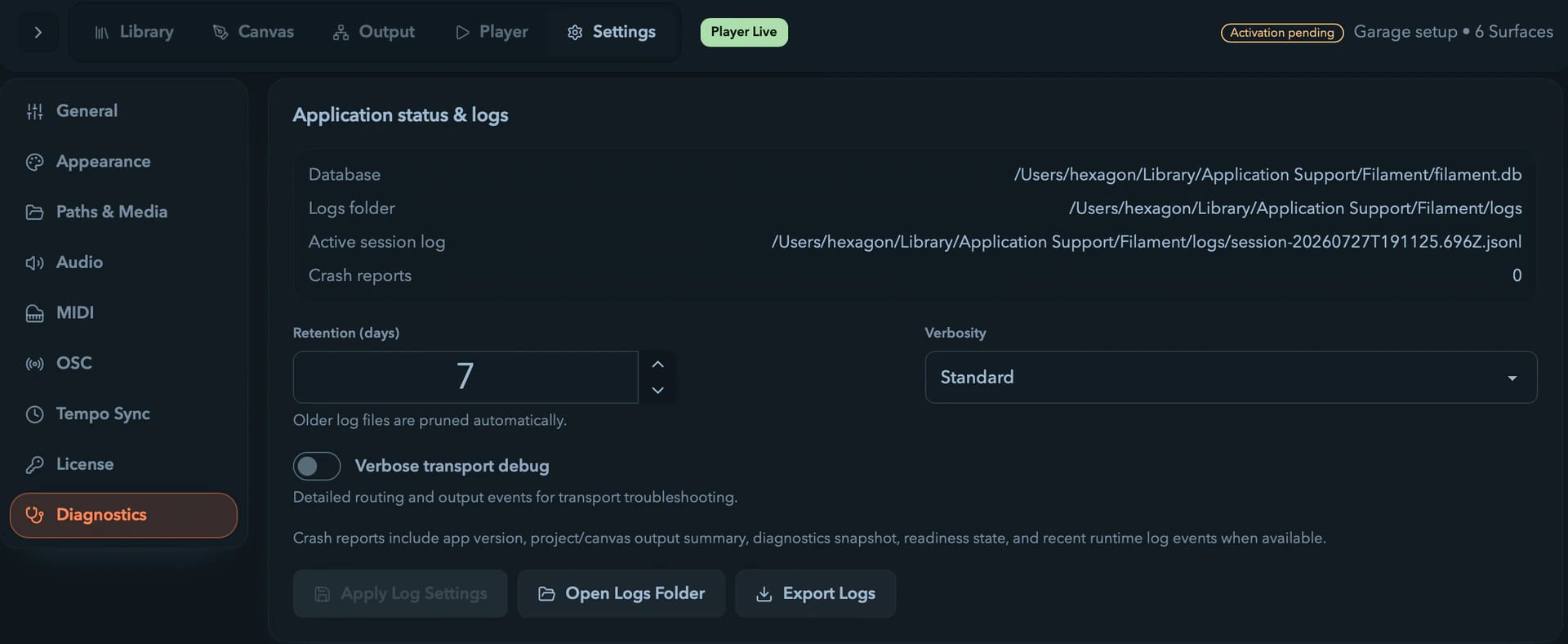
For troubleshooting and handoff. The status block shows the Database path, Logs folder, Active session log, and the number of Crash reports on disk; any detected path issues surface as a warning.
Tune logging with:
| Control | Range / options | Default |
|---|---|---|
| Retention (days) | 1 to 30 | 7 |
| Verbosity | Standard or Verbose | Standard |
| Transport-debug toggle | on / off | off |
Transport-debug adds verbose events for routing and output troubleshooting; older logs are pruned per the retention setting. Apply Log Settings saves pending changes, Open Logs Folder reveals the folder, and Export Logs writes a .zip archive for support. Crash reports bundle context — app version, output summary, a diagnostics snapshot, and recent log events — not just raw stack traces.
Standalone Player
Put a Filament show on a Raspberry Pi that boots straight into it and loops forever. Hardware list, setup recipe, updating the show, and what to check when nothing lights up.
Export to Resolume
Hand your mapping off to Resolume Advanced Output XML, review the sACN-to-Art-Net conversion, and keep Filament current with the in-app updater.