Output & DMX Routing
Configure Art-Net or sACN per Surface, pack channels, read live channel maps, and run preflight and output tests.
The Output tab is where your drawing becomes electricity. Each Surface gets its own output identity — protocol, destination, universe, and start channel — and one project can mix Art-Net and sACN Surfaces freely, because real rigs do.
This is one of two ways Filament leaves the machine. LEDs route here; monitors and projectors are driven from Video Outputs.
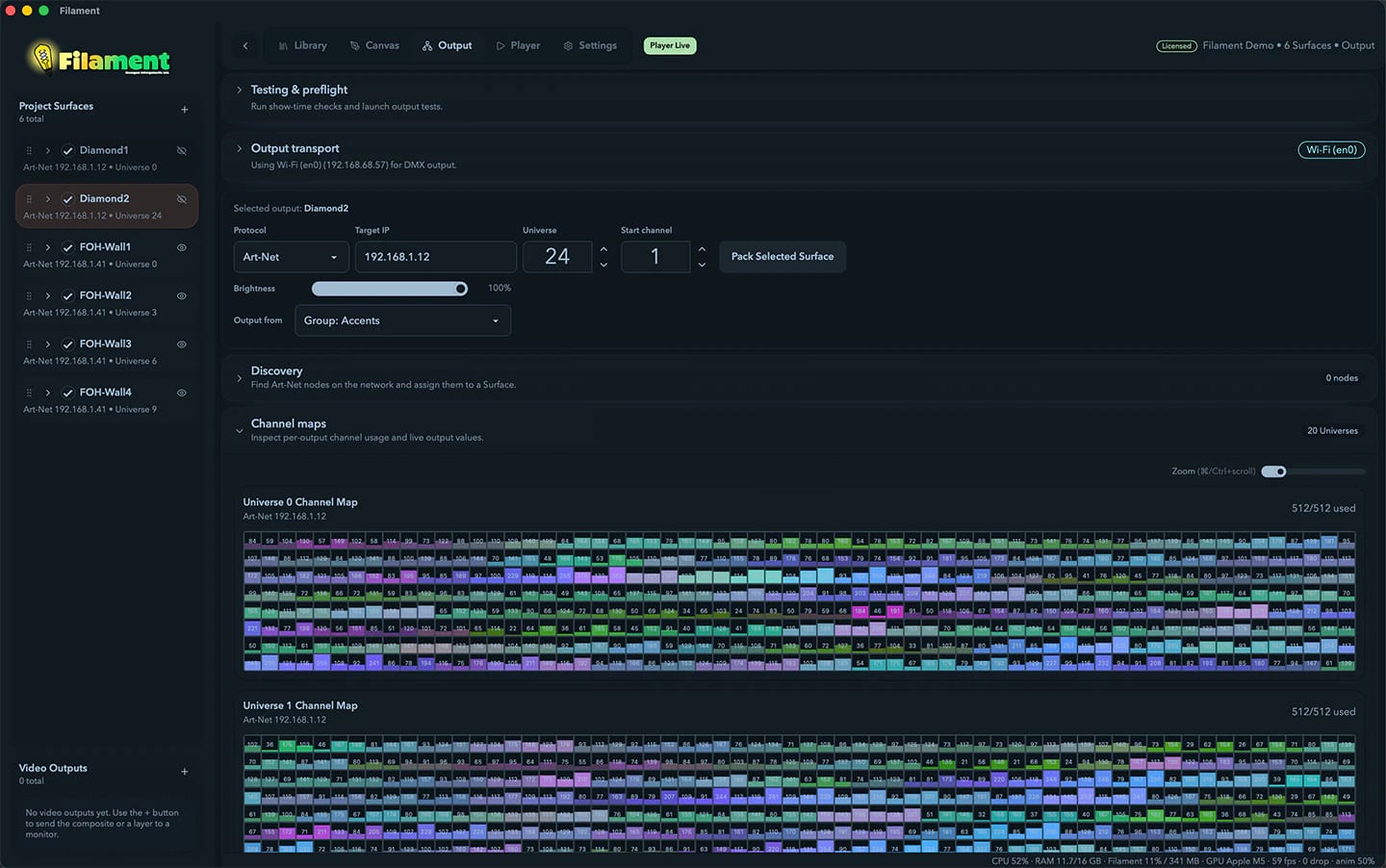
Three sections, stacked in the order you actually work through them:
- Channel assignment — per-Surface routing, validation, Art-Net discovery, and the live channel maps. Where you'll spend your patching time.
- Output transport — network interface, Output FPS, diagnostics. Where you go when packets aren't arriving.
- Testing & preflight — readiness report, safe-state policy, output tests. Where you go before doors open.
The top two start collapsed; click a header to expand. If you're patching, you can ignore them until something's wrong.
Testing & preflight
This section is for show-time verification, not patch editing. Use it the way you'd use a soundcheck: once, properly, before it matters.
Preflight
Run Preflight opens the Output Preflight dialog — one clear report of what still needs attention before a show or an install handoff:
| Field | What it shows |
|---|---|
| Status | Ready or Not ready |
| Generated | When the report was produced |
| Blocking issues | Count of issues that must be fixed |
| Warnings | Count of non-blocking warnings |
| Safe-state policy | The current policy for each lifecycle event |
| Crash recovery | The crash-recovery behavior note |
Issues are listed worst-first, each with a severity badge (blocking, warning, or info) and, when tied to a Surface, a Reveal Surface button. The footer has Close, Copy Report (plain text to the clipboard), and Re-Run Checks.
Safe-state policy
Decide what output does when it has to stop safely. Each lifecycle event is set to Blackout or Hold last frame:
| Event | When it applies |
|---|---|
| Project unload | You close or switch the open project |
| Runtime restart | The player runtime restarts |
| External input timeout | An external input source stops arriving |
| App shutdown | You quit Filament |
Crash recovery is separate: after an unexpected crash Filament starts a new runtime, and if the project is restored, playback follows that project's saved player controls.
Output test
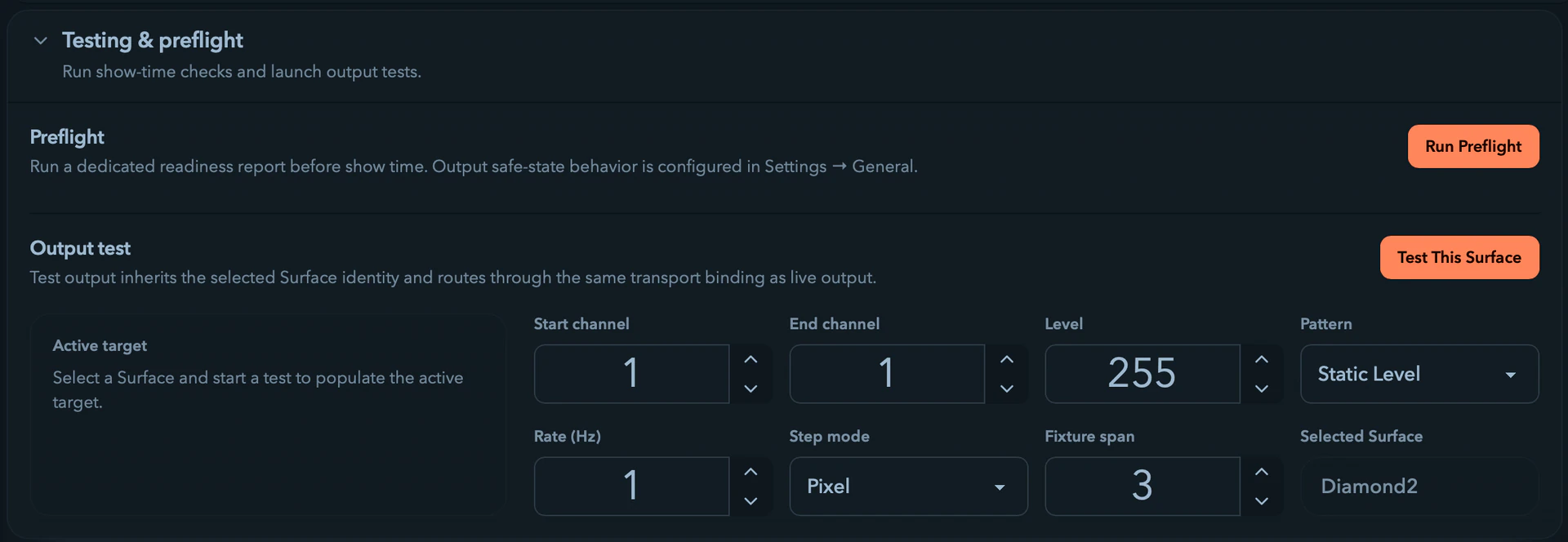
The Output test routes through the same transport binding as live output, so it validates the real path, not a side-channel simulator. Test This Surface starts it (the button becomes Stop Test); playback is suspended while a test runs. The Active target card echoes the live Protocol, Destination, Universe, Range, Pattern, and Route.
| Field | Range | Notes |
|---|---|---|
| Start channel | 1–32768 | Absolute channel where the test begins |
| End channel | Start channel–32768 | Clamped to at least the start channel |
| Level | 0–255 | Output level used by the pattern |
| Pattern | — | Static Level, Ramp, Fixture / Pixel Step, or Identify / Flash |
| Rate (Hz) | 0.1–12 | Animation rate for moving patterns |
| Step mode | — | Pixel or Fixture |
| Fixture span | 1–32768 | Channels per fixture when stepping |
If the Surface has no enabled slices or an incomplete target, a warning explains why a test can't run.
Output transport
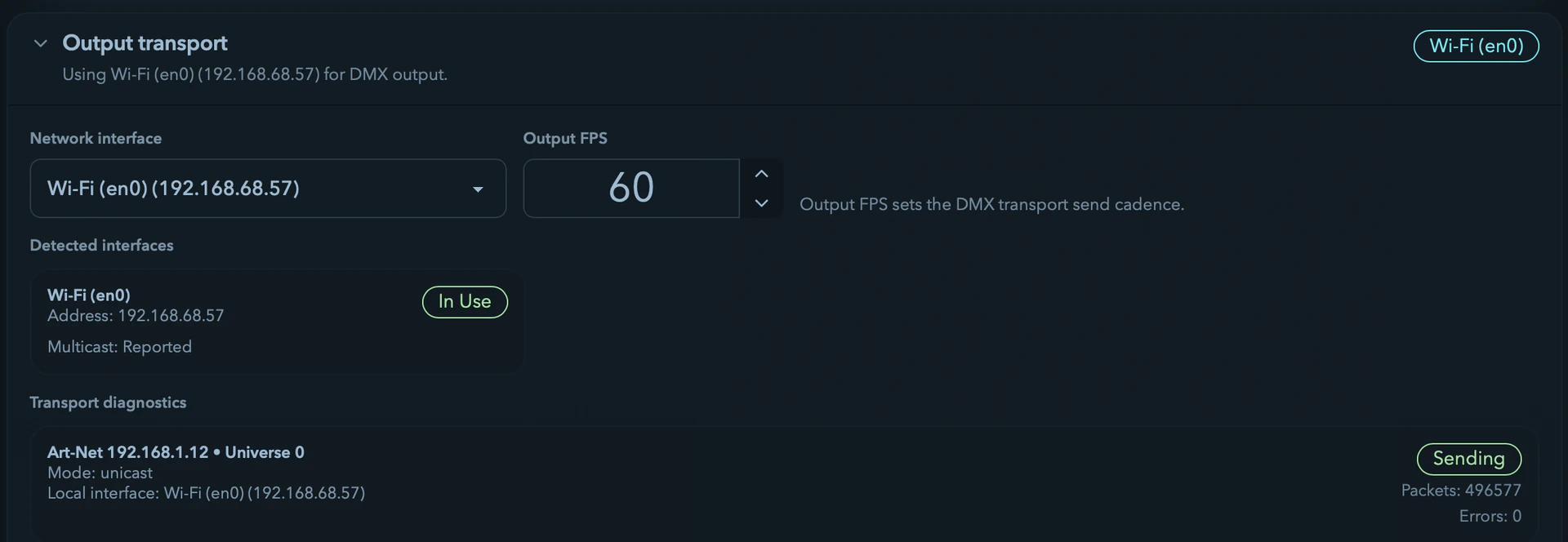
This section shows how Filament is getting packets off the machine. Its header carries a binding summary and, whenever the binding isn't simply the preferred interface in use, a state badge: Preferred, Auto, Ambiguous, Missing, Bind Error, Selected, or Idle.
- Network interface — pick the preferred IPv4 interface for DMX output. If Filament can't honor your choice it falls back automatically and flags it with the header badge.
- Output FPS — the transport send cadence, 1 to 60. Lower it to cut CPU or network load; raise it for faster response.
Detected interfaces
Each detected IPv4 interface is a card with its name and Address, badged In Use (active output) or Selected (your preferred choice). Cards report Multicast capability (Reported, Not reported, or Unknown) and a Broadcast address when available. If none are found, the section reads No active IPv4 output interfaces were detected.
Transport diagnostics
Every active output gets a diagnostics card with protocol, destination, Universe, send Mode, resolved Local interface, and Packets / Errors counters, summed up by a status badge:
| Badge | Meaning |
|---|---|
| Sending | Packets are flowing normally |
| Sending with Warning | Sending, but with a warning attached |
| Recent Send Error | A send failed recently |
| Bind Error | The interface could not be bound |
| Routing Ambiguous | Multiple interfaces are eligible; choose one |
| Interface Missing | The selected interface is not available |
| Destination Invalid | The destination address can't be used |
| Config Invalid | The output configuration is invalid |
Open this section when output is bound to the wrong adapter, multicast capability is unclear, or packet counters stay at zero.
Channel assignment
Per-Surface output settings
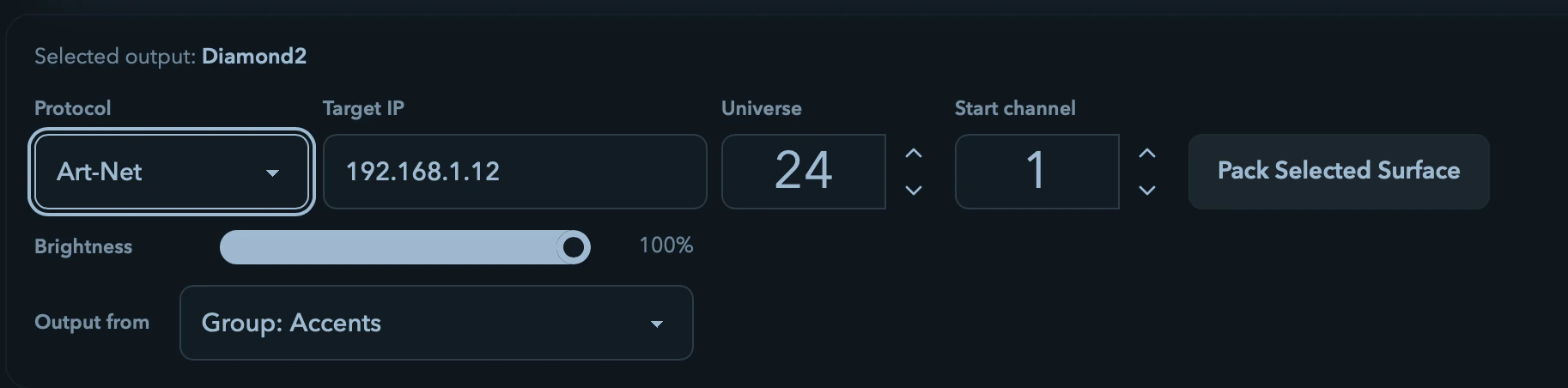
The settings panel routes the selected Surface:
- Protocol —
Art-NetorsACN. - Target IP / Destination — an explicit IPv4 target (labeled Target IP for Art-Net, Destination for sACN unicast). sACN multicast hides the field and derives its destination from the universe.
- Universe — the Surface's first DMX universe (0 or higher).
- Addressing (sACN only) —
MulticastorUnicast. - Priority (sACN only) — packet priority, 0–200, default 100.
- Start channel — the first DMX channel the Surface occupies (1 or higher).
- Pack Selected Surface — see below.
Each Surface can use a different protocol, so mixed projects are normal.
Choosing between Art-Net and sACN
- Art-Net is the best fit for older Art-Net gear and the only protocol Filament can auto-discover. It's also the shape Resolume Advanced Output XML expects, so Art-Net Surfaces export to Resolume without conversion.
- sACN multicast derives its destination from the universe — set the universe and Filament targets the matching multicast group automatically.
- sACN unicast is for receivers that expect a specific destination IP on UDP port
5568. - sACN priority lets a receiver rank this sender when several sources share a universe.
Pack Selected Surface
Pack Selected Surface lays the Surface's fixtures and curves into consecutive DMX channels from the Start channel value. It works on the selected Surface only — there's no project-wide auto-assign. Afterward Filament reports how many items it packed and from which universe and channel; check the validation summary and channel maps to confirm.
Routing and brightness
A Surface decides not just an address but what reaches its physical output:
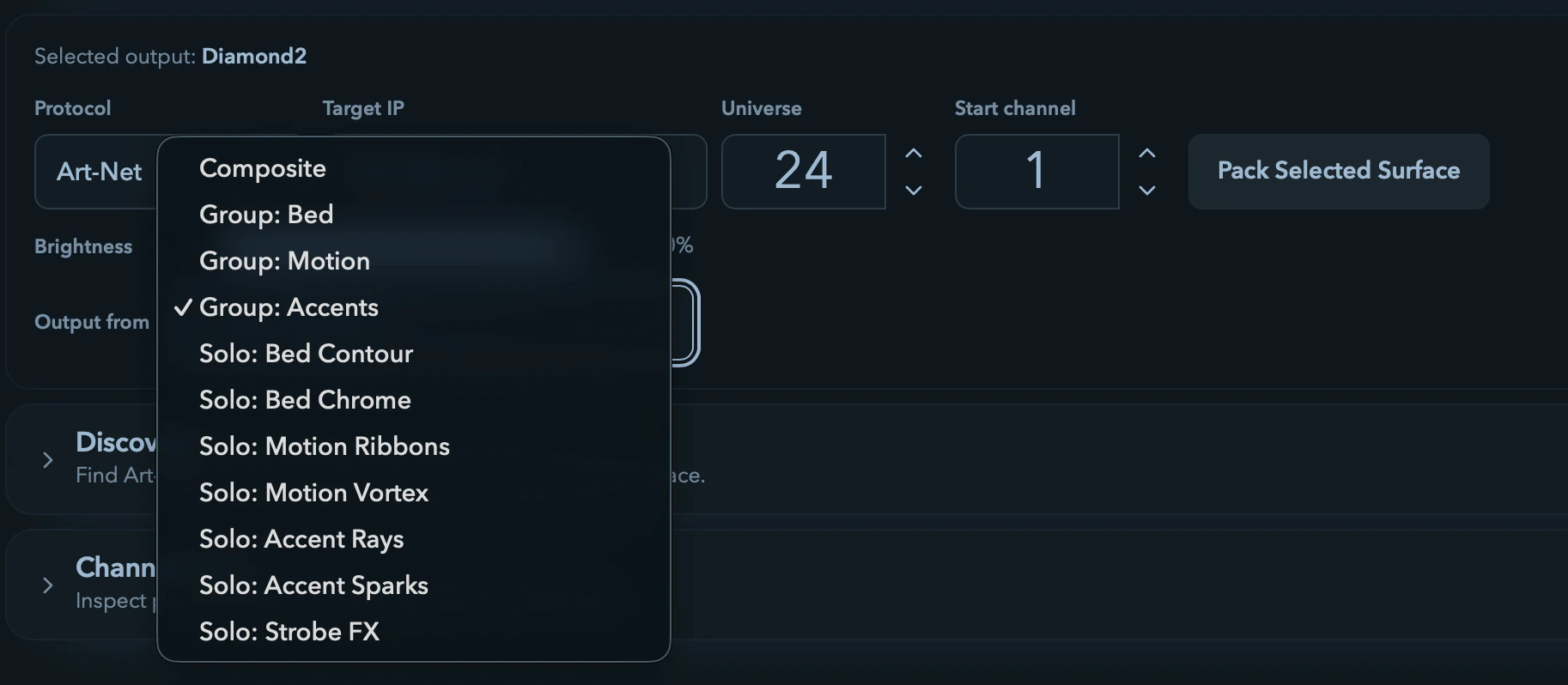
- Output from — Composite (every enabled layer, the default) or Solo: a single layer, so only that layer's pixels reach this output. Soloing is how you send different looks to different parts of one rig. If a soloed layer is disabled or removed, the Surface falls back to the composite so an output is never accidentally dark.
- Brightness — a per-Surface fader, 0–100%, multiplied against the master output brightness. Dim one output without touching the others.
Routing is the bridge between the Player grid and your hardware: build and mix layers on the Player page, then decide here which Surface shows which layer.
Channel validation
When there's a problem, a Channel validation issues alert summarizes it in up to three lines:
- N conflict channel(s) detected. — overlapping assignments inside the same output identity
- N assignment(s) use invalid start channels. — start channels outside the valid range
- N output configuration issue(s) require attention. — per-Surface output-config problems
A Conflicts list below spells out the first dozen conflicts (output identity, universe, channel, and how many slices overlap), and an Output list shows each config issue's message.
These rows are clickable, which is the point of them. Click a conflict and Filament selects the offending slices, expands the map and conflicts sections, and scrolls the right universe panel into view — so a warning takes you to the problem instead of describing it and leaving you to hunt. Out-of-range rows work the same way. From there the arrow keys or the selection toolbar move the chain out of the way.
Discovery (Art-Net only)
The discovery panel scans for Art-Net nodes only.
- Refresh scans the local Art-Net network (about three seconds).
- Each node appears as a card with its IP, Node name, reported Universes, and Responded in last scan (Yes/No).
- Select applies a node's IP and its first reported universe to the selected Art-Net Surface. Adopting a new universe rebases the Surface's start channel to 1. The button reads Applied when the Surface already matches a node.
When the selected Surface uses sACN, discovery is manual by design — sACN derives multicast destinations from the universe or expects a unicast IP in the Output settings.
Nudging addresses from the keyboard
With a fixture chain selected, the arrow keys move its DMX start address:
| Key | Action |
|---|---|
← / → | ±1 channel |
Shift + ← / → | ±1 whole fixture block |
A nudge that would collide with another fixture, or drop below channel 1, is refused — Filament won't let you walk a chain into a silent conflict you'd only find at load-in. Each accepted nudge is one undo step. Arrows do nothing on an empty or mixed selection, or while a text field has focus.
This is the fastest way to close a gap: click the chain, tap → until the map looks right, move on.
The selection toolbar
Select fixtures or curves — in the channel map or on the canvas — and a toolbar appears above the maps showing the count and merged channel range, with nudge and edit actions:
| Control | What it does |
|---|---|
| Double-chevron buttons | Shift the selection back/forward by one block (±N channels, sized to the selection) |
| Step (skip) buttons | Shift the selection back/forward by one channel |
| Split | Start a new group before the first selected fixture |
| Merge (link icon) | Rejoin the selected fixtures with the group before them |
| Edit… | Open the fixture/slice edit dialog |
| Delete | Remove the selected fixtures or curves |
Split, Merge, and Edit… apply to fixture selections; shifting and Delete work for both. Selecting a mix of curves and fixtures disables shifting, with a note to pick one or the other.
Live channel maps
Expand Channel maps to inspect per-universe usage and live output values; the header badge counts universes in use.
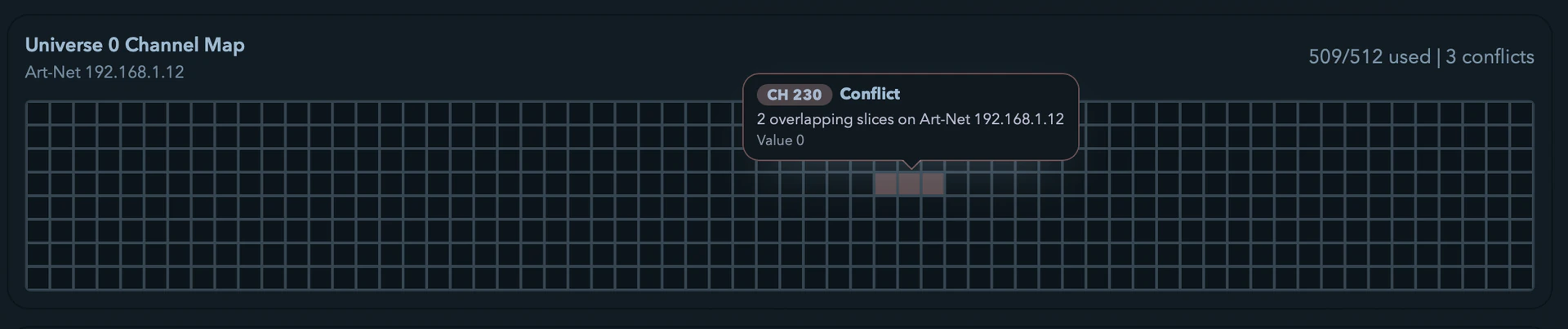
Maps are grouped by output identity, not just universe number, so identical universe numbers don't collapse together when they belong to different protocols or destinations. Each panel is titled Universe N Channel Map with the output identity beneath it and an X/512 used readout (plus N conflicts when any exist).
Reading a map
A map is a live value visualization, not a static key. Each cell is one DMX channel and fills from the bottom up in proportion to its current 0–255 value, tinted by the fixture's live RGB color. Zoomed in, the numeric value is drawn inside the cell.
- Empty cells — no fixture assigned; stay at the base color
- Filled cells — fill height and color track the live value
- Conflicting cells — a solid red overlay (~34% opacity) covers the cell; values aren't drawn while a panel has conflicts
- Selection outline — selected channels get a colored outline
Hover any channel for a tooltip with the channel number, owning slice and Surface, RGB component where relevant, output identity, and live Value. Conflict and shared cells have their own tooltip titles (Conflict, Shared). A Zoom slider scales cells from 12 to 40 px (default 16); numeric values appear past about 18 px. Cmd/Ctrl + scroll over the map zooms it too, and the size you land on survives navigating away and back.

Selecting on the map
The map is a selection surface, not just a readout:
| Gesture | Result |
|---|---|
| Click a cell | Selects the slice that owns it |
| Drag across the map | Marquee — every slice under the box, as a 2D rectangle |
Shift + drag | Adds to the selection |
Cmd/Ctrl + drag | Toggles |
| Double-click a used fixture cell | Selects the slice and opens its start-channel editor |
The marquee is a real rectangle over the grid, not a 1-D channel range, so you can lasso the middle three rows of a universe without dragging in everything either side of them. A marquee drag never also single-selects whatever cell you happened to release on.
Context menus
Right-click a channel to act on whatever owns it:
- A fixture cell: Edit Properties…, Shift −1 channel, Shift +1 channel, Split group here, Merge with previous group, Copy appearance, Paste appearance, Delete.
- A curve cell: Split curve here, Delete curve.
Copy appearance / Paste appearance moves a fixture's look — its per-channel colour offsets, brightness, contrast, flip, and filter mode — onto other slices. Geometry, addressing, and the fixture template stay put, so the channel span can't change under you and no conflict appears out of nowhere. Paste onto a multi-slice selection and all of them take it in one undo step. Handy when one panel out of twelve needs its reds knocked back and then the other eleven need to match.
The clipboard is session-local: switch projects and it clears.
What counts as a conflict
A conflict is two assignments landing on the same protocol + destination + universe + channel. Reusing a universe number on a different output target is fine — overlapping inside the same routed output is not. That scoping keeps these legitimately separate:
- Art-Net universe 1 to one node vs. Art-Net universe 1 to another node
- Art-Net universe 1 vs. sACN universe 1
- sACN multicast universe 1 vs. sACN unicast universe 1
Practical output tips
- Use Art-Net discovery when patching WLED or other Art-Net nodes for the first time.
- Use sACN multicast when the receiver listens on the standard universe-derived group; switch to sACN unicast when multicast is filtered or the receiver expects a direct IP.
- Open Output transport when packets go out on the wrong interface or counters stay at zero.
- Run Preflight before a show and use Copy Report for a handoff record.
- Click the conflict row, don't go looking. It selects the culprits and scrolls you to them.
- Marquee the map to grab a run of fixtures, then walk them with
←/→instead of retyping start channels. - Got one fixture looking right? Copy appearance onto the rest of the rig in a single undo step.
The Player
Build a clip grid, mix layers, and drive your LEDs live
Canvas & curves
Draw LED curves and slices that feed these channel assignments
Export to Resolume
Hand your finished mapping off to Resolume Advanced Output XML
Video Outputs
Send the composite or a layer to monitors and projectors, with projection-mapping warp
Selecting, Editing & Transforming
Select curves and LED slices, transform them with on-canvas handles, align and distribute, copy geometry between Surfaces, and drive the project sidebar from the keyboard.
Video Outputs
Send the composite, a group, or a single layer to monitors, projectors, other apps, or a file — with per-slice warp, masking, and multi-projector edge blending.