Keyboard Shortcuts
Every Filament shortcut — canvas tools, the Player transport, the Session grid, the Timeline, library navigation, and the app-wide menu accelerators.
Filament expects you to use the keyboard. Reaching for a menu mid-show is a tax, so anything you do more than twice has a key.
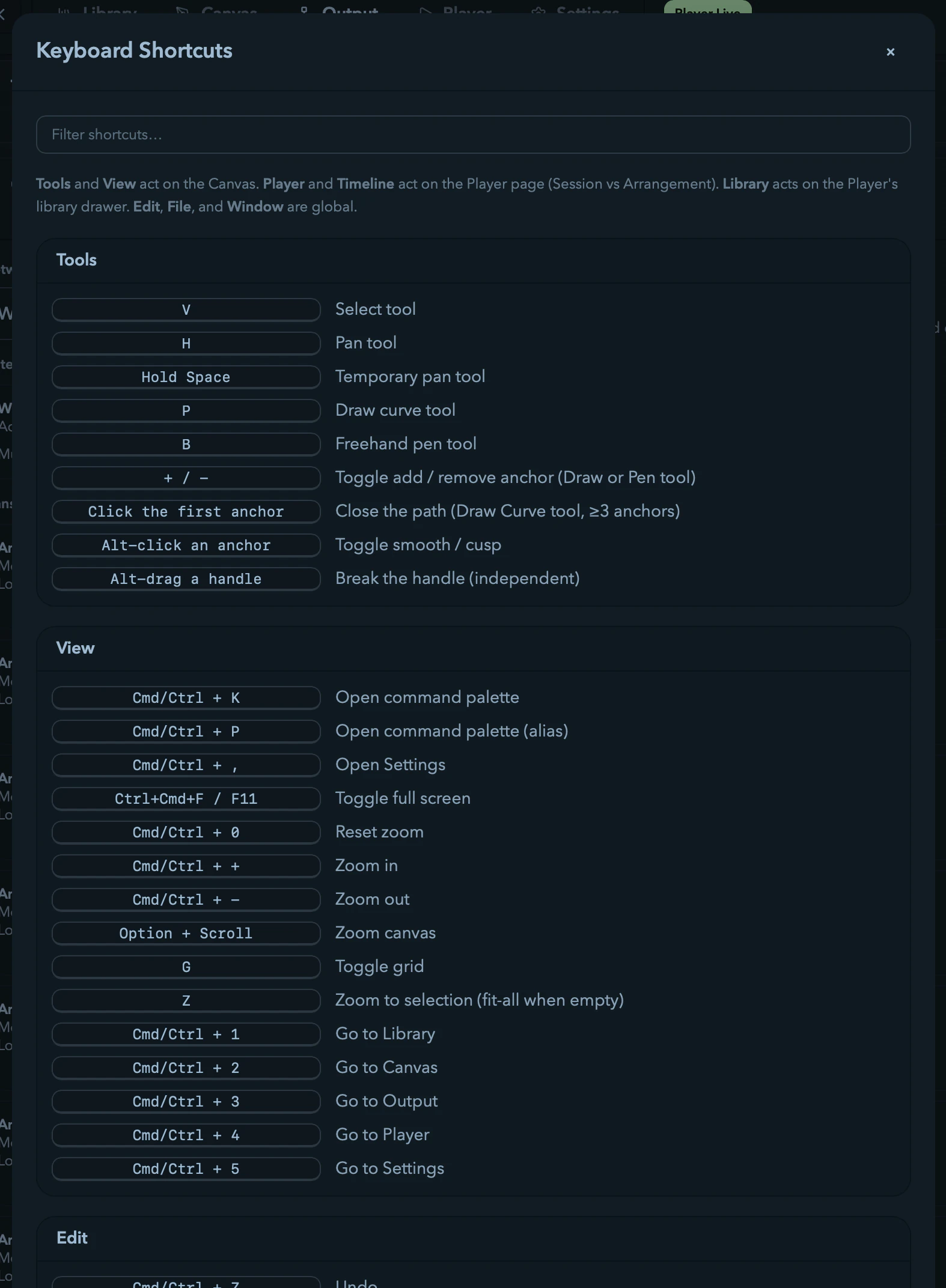
The in-app reference is the fastest way to find one: Cmd/Ctrl + /, or Help → Keyboard Shortcuts. It's searchable, grouped the same way this page is, and — this matters — it's honest. Every entry in that dialog does something. If you find one that doesn't, it's a bug worth reporting.
How scoping works
Almost every key is scoped — it belongs to a place. S splits a clip on the Timeline and does nothing on the Canvas. ← nudges a DMX address on the Output page, steps clips in the Session grid, and moves selected geometry on the Canvas. Same key, three jobs, no collisions.
Three rules cover it:
- The route decides. Canvas keys fire on the Canvas, Player keys in the Player, and so on.
- Focus wins over route. Once a Surface row or a library tile has focus, the arrow keys belong to that list, not the page behind it.
- Typing beats everything. With a cursor in a text field, letter keys type. The only exceptions are
F1–F6, which never produce text.
Menu accelerators (File, View, Window, Help) are the exception — they carry real system accelerators and work from anywhere. Edit menu items route to whichever editor you're in: the Canvas on /canvas, the Timeline or the Session grid on /player. On a page with no editor — Settings, Library, Output — they simply do nothing. They will never yank you to another page to run an action you didn't ask for.
Everywhere
| Key | Action |
|---|---|
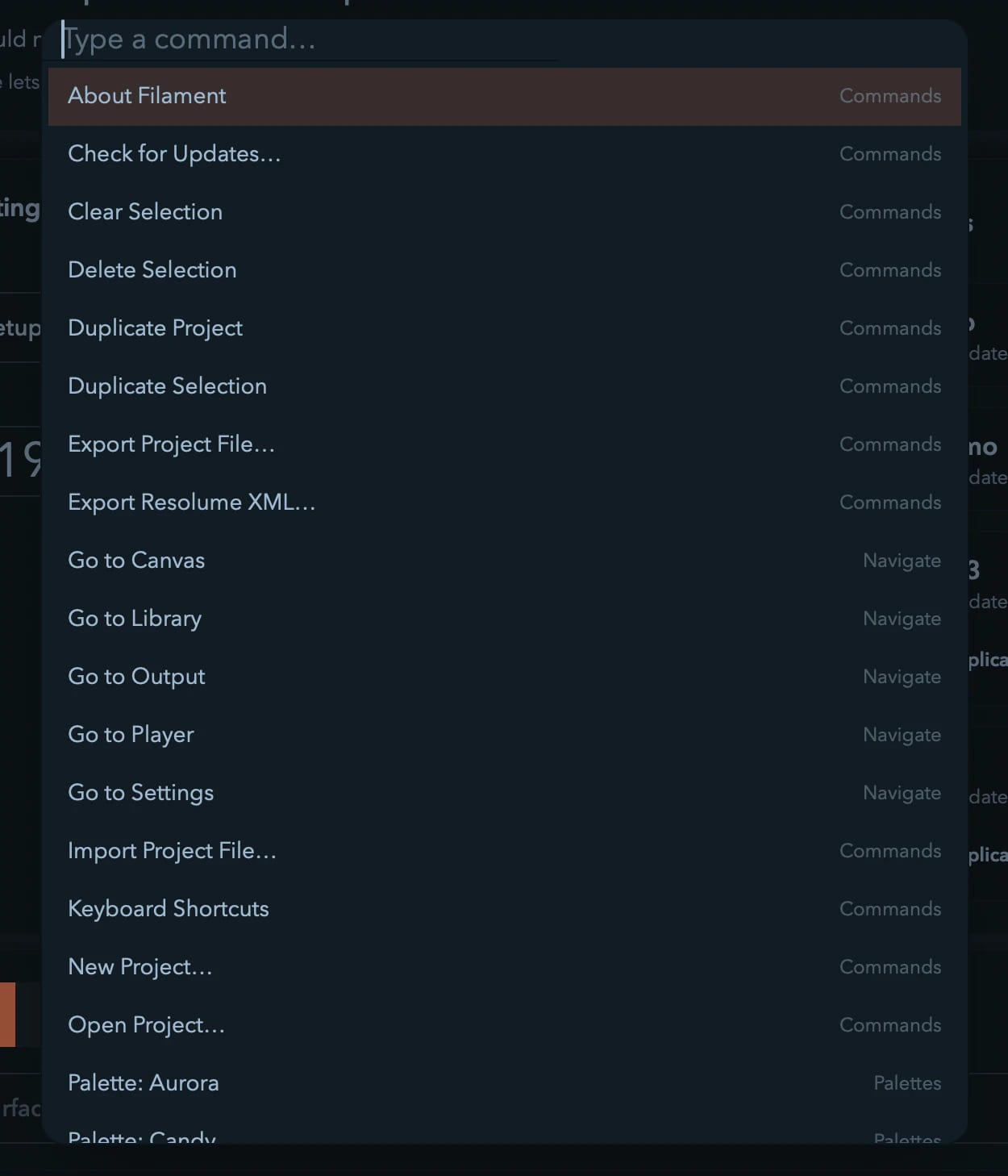
Cmd/Ctrl + K | Command palette — fuzzy-search every menu action, page, settings category, and palette |
Cmd/Ctrl + P | The same palette |
Cmd/Ctrl + , | Settings |
Cmd/Ctrl + / | This shortcut reference |
Cmd/Ctrl + Z | Undo |
Cmd/Ctrl + Shift + Z | Redo |
Cmd/Ctrl + Y | Redo (Windows habit) |
The command palette is worth building a habit around. Type a few letters of what you want — nwp finds New Project — and hit Enter. It matches subsequences, so you don't have to remember whether the menu item says "Export XML…" or "Export to Resolume".
File and navigation
| Key | Menu item | Action |
|---|---|---|
Cmd/Ctrl + N | File → New Project… | New-project dialog |
Cmd/Ctrl + O | File → Open… | Project chooser |
Cmd/Ctrl + S | File → Save | Save |
Cmd/Ctrl + E | File → Export XML… | Export to Resolume |
Cmd/Ctrl + Shift + R | Library → Refresh Library | Rescan the library |
Cmd/Ctrl + 1…5 | View → … | Library, Canvas, Output, Player, Settings |
File → Duplicate Project has no key on purpose — Cmd/Ctrl + D is Duplicate Selection, and quietly cloning a project because your fingers were on the wrong page is not a good surprise.
Window
| Key | Action |
|---|---|
Cmd/Ctrl + M | Minimize |
Cmd/Ctrl + W | Close window |
Ctrl + Cmd + F or F11 | Toggle full screen |
Cmd/Ctrl + Q | Quit |
The Window menu also holds Toggle Maximize and the preview windows — Composition Preview, Clip / Layer Preview, and a per-layer Layer Previews submenu. Those open from the menu; no keys.
Canvas
Tools
| Key | Action |
|---|---|
V | Select |
H | Pan |
P | Draw curve (Bezier pen) |
B | Freehand pen |
Space (hold) | Temporary pan — releases back to the tool you were using |
View
| Key | Action |
|---|---|
Cmd/Ctrl + 0 | Fit the canvas to the view |
Cmd/Ctrl + = / Cmd/Ctrl + - | Zoom in / out |
Z | Frame the selection — or fit everything, with nothing selected |
G | Show / hide the grid |
Wheel behavior: plain scroll pans, pinch or Ctrl/Alt + scroll zooms toward the cursor. Panning on plain scroll is deliberate — a stray trackpad gesture shouldn't rescale your stage.
G controls grid visibility only. Snap-to-grid is the separate magnet toggle, and you can suspend it for one drag by holding Cmd/Ctrl.
Editing
| Key | Action |
|---|---|
Cmd/Ctrl + A | Select every standalone slice |
Cmd/Ctrl + C / X / V | Copy / cut / paste curves and slices |
Cmd/Ctrl + D | Duplicate the selection |
Delete / Backspace | Delete the selection |
← ↑ → ↓ | Nudge by 0.5 px — Shift for 5 px |
Escape | Clear the selection and deselect the active Surface |
Holding an arrow key collapses the whole burst into one undo step, so nudging a strip into place twenty times doesn't cost you twenty Cmd+Zs to get back.
Cmd/Ctrl + A picks up standalone slices only — imported fixtures and matrices. Curve-generated slices are edited through their curve, so in a project drawn entirely from curves it selects nothing. Marquee or use the sidebar instead.
Anchors
With the Draw or Freehand tool active and a curve selected:
| Key | Action |
|---|---|
+ / - | Toggle add-anchor / remove-anchor mode (press again to leave) |
Alt + click an anchor | Toggle it smooth ↔ cusp |
Alt + drag a handle | Break the handle so it moves independently |
| Click the first anchor | Close the path — while drawing, with at least three anchors down |
A plain handle drag on a smooth anchor keeps its symmetry: the opposite handle mirrors. Alt is what breaks that. This is backwards from some pen tools and right for LED work, where you want smooth by default and a corner only when you ask for one.
Player
These fire while the Player is in front and you aren't typing.
| Key | Action |
|---|---|
Space | Play / pause |
Tab | Switch Session ↔ Arrangement |
B | Blackout |
T | Tap tempo |
[ / ] | Speed down / up by 0.1× |
- / + | Output brightness down / up by 5% |
Esc | Exit MIDI Learn — only while it's armed |
Session grid
| Key | Action |
|---|---|
← / → | Step the selected layer to its previous / next occupied clip |
F2 | Rename — selected group, then cell, then layer |
Esc Esc | Panic. Two Escapes inside half a second stop every layer |
| A bound key | Launch its cell or column |
Arrow-stepping skips empty cells, clamps at both ends, and never wraps — so holding → walks you to the last clip on that layer and stops there instead of looping back to the top.
Panic crossfades every layer out. It leaves blackout alone and writes no undo entry, because the one time you need it you'll be reaching in the dark.
The Key Map (library drawer → Connections, then the Key Map button) binds bare keys to cells and columns: arm it, click a cell, press a key. Keys the transport already owns are refused — Space, Tab, Esc, F2, ←, →, b, t, [, ], -, =, +.
Parameter controls
Every knob and fader in the Player answers to the same four gestures:
| Gesture | Action |
|---|---|
| Drag | Set the value — Shift for fine |
| Double-click | Type an exact value |
| Right-click | Reset, type, copy/paste the value, MIDI-learn, add or bypass modulation |
| Scroll | Nudge ±1 step — Shift for finer |
Scroll-to-adjust is off by default, under Settings → General → Parameter controls. Left on, an attempt to scroll a crowded effects panel silently rewrites whatever knob happened to be under the pointer. Turn it on once you know you want it.
Double-clicking an output marker on a modulated fader types its out-min or out-max directly.
Library drawer
| Key | Action |
|---|---|
F1–F6 | Video clips / Animations / User animations / External sources / Effects / Connections |
Cmd/Ctrl + Alt + 1…6 | The same tabs |
← ↑ → ↓, Home, End | Move focus across tiles |
Enter / Space | Load the focused tile |
Cmd/Ctrl + F | Open the drawer and focus its search |
Escape | Clear the search — again to blur it |
Pressing a tab's key while that tab is showing closes the drawer. F1–F6 work even with a cursor in a search box, since they can't type anything.
Double-clicking a tile loads it too — into the selected cell for content, or into the resolved chain (clip → group → layer → master) for an effect.
Timeline (Arrangement)
Tab gets you here. Everything below is scoped to the Arrangement view.
Transport and navigation
| Key | Action |
|---|---|
Space | Play / pause |
Shift + Space | Play from the ghost playhead |
Home / End | Jump to the start / the end of the show |
, / . | Previous / next marker |
Alt + ← / Alt + → | Previous / next clip edge |
L | Toggle the loop region |
Cmd/Ctrl + L | Set the loop to the selection |
M | Drop a marker at the playhead (again on one to rename it) |
Which Space does what is yours to choose — Settings → General → Timeline swaps whether plain Space resumes in place or restarts from the mark you clicked.
View
| Key | Action |
|---|---|
Cmd/Ctrl + 0 | Fit the whole show |
Z | Zoom to the selection |
+ / - | Zoom in / out around the playhead |
Cmd/Ctrl + 4 | Toggle snapping |
Plain scroll moves through tracks, Shift + scroll through time, Alt + scroll zooms track heights, and Cmd/Ctrl + scroll or pinch zooms time around the cursor. Middle-drag grabs the view like a hand tool, scrolling the ruler or the minimap always pans time, and Cmd-dragging the ruler zooms into the dragged span.
Clips
| Key | Action |
|---|---|
S | Split the selection at the playhead |
Cmd/Ctrl + D | Duplicate in place |
Cmd/Ctrl + B | Repeat the selection after itself |
Cmd/Ctrl + J | Join adjacent clips |
Cmd/Ctrl + U | Quantize clip starts to the grid |
Q / W | Trim the clip start / end to the playhead |
0 | Mute / unmute the selection |
F2 | Rename the selected clip or marker |
Enter | Open the clip placement dialog |
Delete / Backspace | Remove the selection |
Cmd/Ctrl + C / X / V | Copy / cut / paste clips and automation points |
Cmd/Ctrl + A | Select all clips — or every point in the focused lane |
← / → | Nudge time (Shift = fine) |
↑ / ↓ | Move clips across tracks, or nudge automation values |
Escape | Cancel the drag in progress, or clear the selection |
Gestures
| Gesture | Action |
|---|---|
Cmd/Ctrl + Alt + drag a clip body | Slip edit — the content slides under a frozen clip |
Cmd/Ctrl + drag an empty lane | Draw automation freehand |
| Drag the playhead in the lane area | Scrub, the same as on the ruler |
Alt + drag | Leave a copy behind, and bypass snapping for that gesture |
Output
Arrow keys on /output move DMX addresses, not geometry. With a fixture chain selected:
| Key | Action |
|---|---|
← / → | Nudge the start address ±1 channel |
Shift + ← / → | Nudge by a whole fixture block |
A nudge that would collide with another fixture, or fall below channel 1, is refused rather than quietly creating a conflict. Each accepted nudge is one undo step.
| Gesture | Action |
|---|---|
| Drag on a channel map | Marquee-select every slice under the box |
Shift / Cmd/Ctrl + drag | Add to / toggle the selection |
| Double-click a used fixture cell | Select the slice and open its start-channel editor |
Cmd/Ctrl + scroll | Zoom the map |
The Surfaces list
Click a Surface row and the list takes the keyboard:
| Key | Action |
|---|---|
↑ / ↓ | Move focus and selection together |
← / → | Collapse / expand the focused Surface |
Home / End | First / last Surface |
F2 | Rename inline |
| Type a name | Jump to the first Surface that starts with it |
Shift + F10 or the Menu key | Open that row's context menu |
Cmd/Ctrl-click, Shift-click | Add to / range-select a multi-selection |
While a row has focus the arrows stay with the list — they won't also nudge canvas geometry or DMX addresses behind your back.
Export to Resolume
Hand your mapping off to Resolume Advanced Output XML, review the sACN-to-Art-Net conversion, and keep Filament current with the in-app updater.
System & GPU Requirements
The platforms Filament runs on, why a working GPU is mandatory, and how to recover when the app can't find a graphics adapter.