 Filament Docs
WLED
How Filament finds WLED boards, reads their outputs, and sets them up to receive your show over sACN or Art-Net.
WLED is the firmware on most low-cost ESP32 LED controllers, including the Gledopto and QuinLED boards in the catalog. Filament treats a WLED as a first-class controller: it hears it on the network, reads its outputs, and writes the settings it needs to show your project.
Requirements: WLED 0.15 or later. Filament sends sACN or Art-Net; set up the board's LED outputs (pins and colour order) in WLED itself first. Filament can set the LED chip for you.

Finding WLEDs
Filament listens for WLED boards from the moment it starts, using WLED's own announcements and mDNS. It never polls a board just to see whether it's there.
When a WLED that isn't in your project is online, Output → Setup and the project home page show New WLED found with its name and address. Add opens the Add Controller wizard already reading it; Dismiss hides it for the rest of the session.
If your router gives a known WLED a new address, Filament recognises it by its MAC address. Its card reads Moved to 192.168.1.70, and Update IP in its inspector follows it.
Adding a WLED
Add on the notice, or Choose in the wizard, reads the WLED's outputs. Tick the outputs with strips, set their LED counts and name the Surfaces. Outputs Filament can't drive, such as PWM channels, are greyed out. See Adding a Controller.
The WLED inspector
Click the WLED's card to see:
- Status — whether it's online and what it's showing: Online · Receiving sACN from this computer · 40 fps, Online · Idle, Online · Live override on in WLED, Offline (last seen 14:02), or Not seen on the network yet.
- Last read, with Open WLED (its web page in your browser) and Read. Filament also reads a WLED once a session when it comes online.
- Power supply for this WLED — see Power limit.
- Set Up for Filament — highlighted, with WLED doesn't match Filament., when the board's settings differ from what Filament needs. The card shows Out of sync too.
- LEDs per output, one row per output with the LED type the board reports, and Flash Outputs.
- Addressing — Protocol, Start universe, for sACN Multicast or Unicast, and the LED chip. Each output starts where the one before it ends.
- Any issues with the board, and Remove Controller.
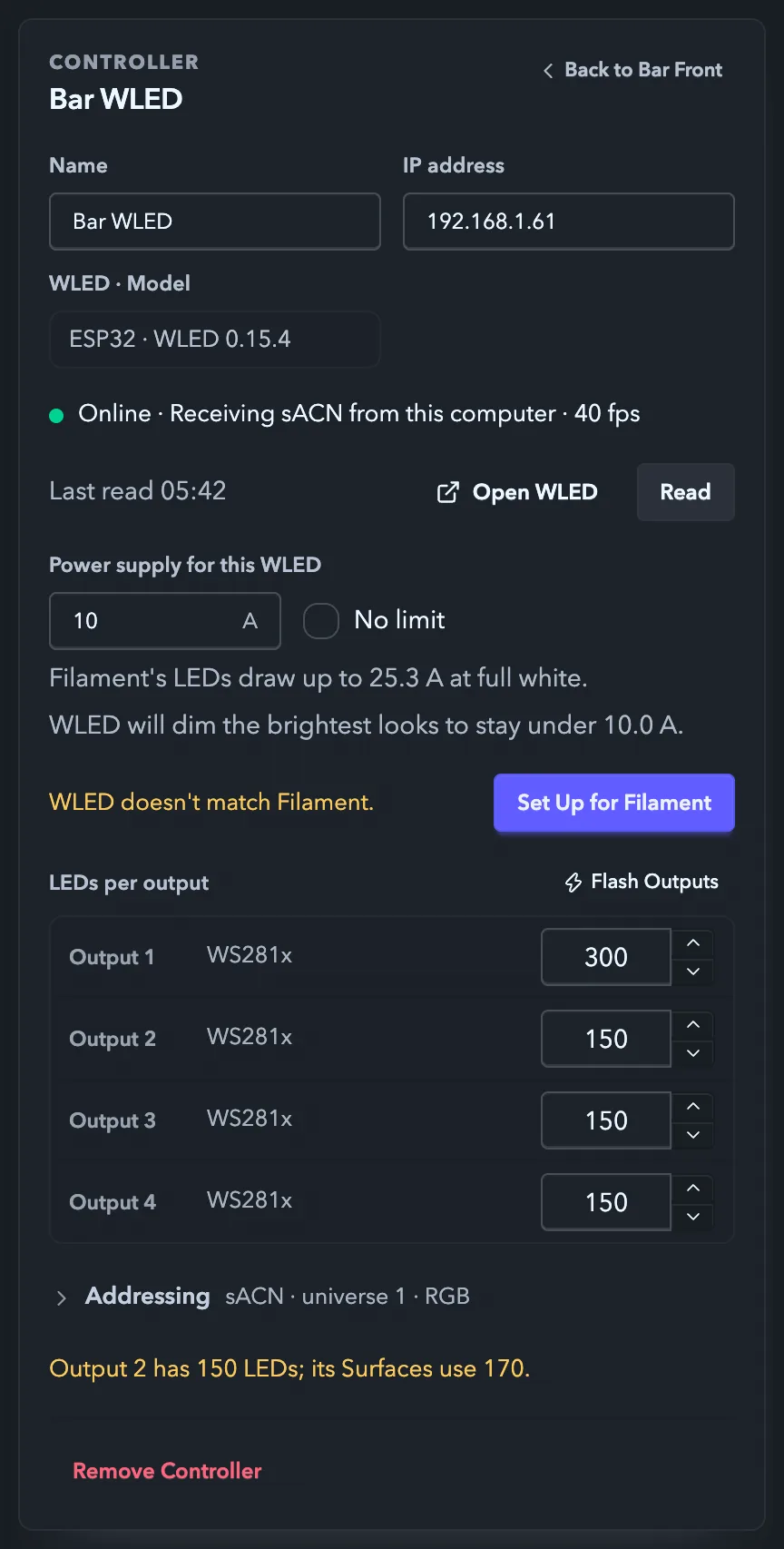
Editing an output's LED count, the start universe, the protocol or the LED chip makes the WLED out of sync until you run Set Up again.
Set Up for Filament
Set Up for Filament reads the board, works out what it needs, and shows you every change before writing anything:
- Power supply — the first time, Filament asks for the power supply's current. See below.
- Filament will change — the changes, grouped as Outputs and Power, plus Network input settings folded behind a disclosure. Each line shows the old and new value, such as Output 1 LED count 30 → 300.
- Apply writes them. A board with a settings PIN asks for it once; Filament keeps it until it quits.
- Filament reads the board back and checks that it took every change. WLED is set up. confirms it.
- When the receive protocol or multicast changed, or the universe changed with multicast on, WLED needs a restart to listen on the new settings. It also needs one when the LEDs it is running don't add up to its outputs' lengths. Restart WLED restarts it and waits for it to come back.
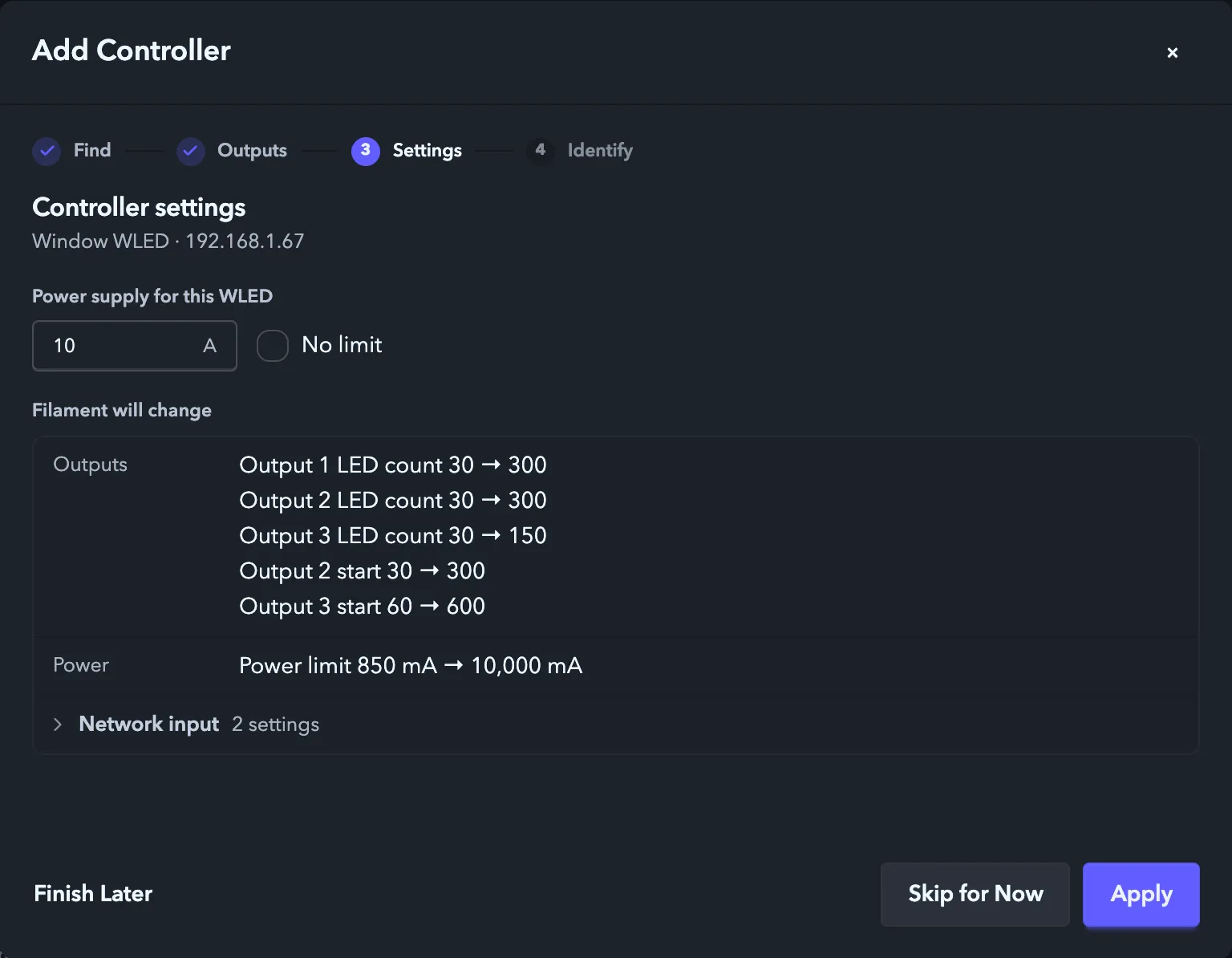
If nothing needs changing, the dialog says Already set up. Revert puts back what the last Set Up on that WLED changed, if you ran it since starting Filament.
What Set Up writes:
| Setting | Value |
|---|---|
| Network input | On, on the declared protocol, universe and multicast setting, starting at address 1, in multi-pixel mode, with gamma, live offset, the LED map and "main segment only" off and brightness at full |
| Each output | Its start and LED count, the LED chip when you chose one, and manual white for RGBW outputs |
| Power | The limit from your power supply, split across the outputs by length |
Filament never writes pins, colour order, Wi-Fi or the number of outputs. When the board has more or fewer outputs than Filament declares, Set Up can't run; Use WLED's Outputs in the issue list takes the board's outputs instead.
LED chip
LED chip says what your strips are built from: WS2812 RGB, SK6812 RGBW, WS2805 and the other pixel chips WLED drives. Choose it in the Outputs step when you add the WLED, or later under Addressing. It is one choice for the whole board.
- As set in WLED leaves each output's LED type alone. This is where a WLED found on the network starts.
- With a chip chosen, Set Up writes it to the board's outputs, as Output 1 LED chip WS2812 RGB → SK6812 RGBW. An RGBW or warm-and-cool-white chip also switches the board to four channels per LED.
Filament offers the chips the board's pins can take. An output wired with one data pin can't become a chip that needs a clock wire, such as APA102; add the clock pin in WLED first. Outputs that aren't pixel strips (on/off and PWM) are left as they are. A board added from the catalog offers every one-wire chip until it is on the network.
When the board's outputs hold another chip than the one you chose, the WLED is out of sync: Outputs 1 and 2 aren't set to SK6812 RGBW in WLED. Run Set Up to write it.
Power limit
WLED dims the strip when a look would draw more current than its power limit. Tell Filament what your power supply can deliver in Power supply for this WLED, in amps, and Set Up writes it as the board's limit, split across the outputs in proportion to their lengths.
- Filament shows what your LEDs draw at full white and whether WLED will dim the brightest looks to stay under the limit.
- No limit turns the limiter off. Only do this when the supply can deliver the full-white current.
- When the board already holds a real limit, Filament offers it; WLED's factory 850 mA default always asks.
RGBW and CCT strips
RGBW outputs receive four channels per LED. Outputs with warm and cool white (WS2805, SM16825, FW1906) also receive RGBW: WLED splits the white between warm and cool by its own colour-temperature setting, the same for every pixel. For per-pixel warm and cool white, use a controller that takes five channels per pixel, such as a PixLite.
WLED 2D effects on your layout
File → Export to WLED… turns the LEDs you've drawn on one Surface into a WLED LED map (ledmap.json), so WLED's own 2D effects play across your real layout instead of a rectangle. It's free in the trial and needs WLED 16 or later.
- Draw your strips on the Canvas in the order they're wired, with their LED counts. A photo of the installation as the Canvas backdrop helps.
- Choose File → Export to WLED…. The preview shows WLED's grid with a dot for each LED.
- Set Detail, the number of grid cells along the longer side. Auto picks the smallest grid where no LED has to move more than one cell. With a board chosen, the slider ends at the largest grid that board has memory for.
- Pick the board in Send to and click Send. Filament uploads the map, switches the board to it and resets its segments to the new grid.
Save File… writes ledmap.json instead. Upload it on the board's /edit page and restart it.
Each grid cell holds one LED. Where LEDs sit closer together than a cell, one moves to a free neighbouring cell (amber in the preview) or, with no free cell nearby, is left out (a red cross). A finer grid places LEDs more precisely but uses more of the board's memory and makes effects slower, because WLED draws every cell, empty or not. Filament won't send a grid the board has no memory for.
LEDs are numbered in wiring order, the same way Filament addresses them when it plays live. A Surface on a WLED's output in Output → Setup starts where that output starts. Disabled curves and LEDs are left out; a Surface that is switched off still exports. WLED can't address an LED past index 65,535, and the dialog says so when a map has one.
To drive the same LEDs from Filament afterwards, choose Play live from Filament after sending, or run Set Up for Filament. It turns off WLED's Respect LED Maps, which would otherwise send Filament's live output through the map.
Troubleshooting
| Message | What to do |
|---|---|
| No answer from the WLED. Check its IP address and network. | Check the board is powered and on the same network, and its address. |
| The WLED runs 0.14. Update WLED to 0.15 or later. | Update the firmware from WLED's own page. |
| The WLED runs 0.15.3. Update WLED to 16 or later to use 2D maps. | Update the firmware, or use Save File… and a board on 16. |
| The map was uploaded but WLED didn't switch to it. | Restart the WLED. |
| The map needed … cells; this WLED now has memory for …. Send again. | The board's free memory dropped since Filament read it. The dialog has refitted the grid; click Send again. |
| WLED isn't listening yet. Restart it to start receiving. | Restart it from Set Up or the wizard. |
| WLED didn't take this change: … | Filament read the board back and the change wasn't there. Try again; if it repeats, check the setting in WLED's page. |
| LEDs dim on bright looks | The power limit is doing its job. Raise it only if the supply allows. |
Adding a Controller
Find a controller on the network or pick it from the catalog, choose the ports with LEDs, write its settings, and flash each port to find its strip.
PixLite
Set up Advatek PixLite Mk3 controllers from the box, keep their port tables in step with Filament, and export standalone shows to their microSD card.