Troubleshooting License Validation
Diagnose activation, seat-limit, offline, and downgrade problems, and read the messages Filament shows.
Almost every license problem surfaces in one place: the License card under Settings → License. It carries the state badge, your masked key, the Last checked time, your Installation ID and Machine ID, a plain-language message, and the buttons you'll use to recover. Start there. New to how licensing works day to day? Read Licensing and Trial and Activating a License first.
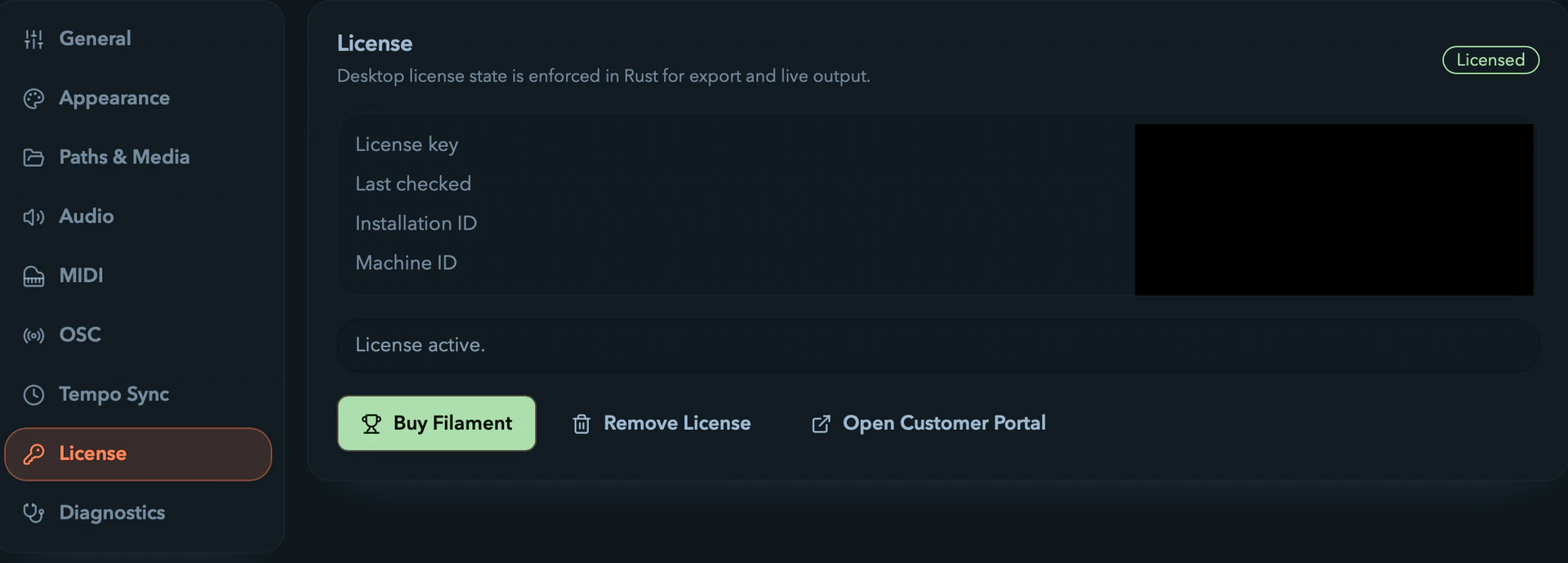
Read the state badge first
The badge tells you where Filament thinks your license stands. Match it before doing anything else.
| Badge | Meaning | Unlocked? |
|---|---|---|
Licensed | Activated and verified online. | Yes |
Licensed (offline-safe) | A previously verified receipt is in use because the backend is unreachable right now. | Yes |
Activation pending | Your key is saved (encrypted), but the first successful online activation hasn't completed yet. | No |
Trial (invalidated) | A saved license couldn't be confirmed and Filament returned to trial mode. | No |
Trial | No license key is saved. | No |
When unlocked is No, export is blocked (Resolume XML, fixture export, and project files) and live output is disrupted every 20 seconds. The toolbar badge is clickable while it reads Activation pending — it jumps straight to Settings → License. For why Licensed (offline-safe) is normal rather than an error, see What Happens Offline.
"I bought Filament but can't find my key"
Your raw key lives in the customer portal, not inside Filament. From the License card, select Open Customer Portal, copy the key, and follow Activating a License. If you've never purchased, Buy Filament opens the purchase page instead.
"My key works on one machine but not another"
Each license allows two concurrent seats. Try to activate a third and activation doesn't fail silently — Filament saves the key, the badge moves to Trial (invalidated), and the message panel (plus a toast) shows:
This license is already in use on 2 machines.
To recover:
- On a machine you no longer use, open Settings → License and select Remove License (confirm the dialog) to free a seat.
- On the new machine, open the activation dialog and activate again.
- If you've lost access to the old machine entirely, contact support to release the stale seat.
"I'm offline and activation fails"
Expected for a first activation — Filament needs one successful online round-trip before it can store a receipt to rely on later. Until then it keeps your key encrypted and the badge stays Activation pending. The message panel shows why, typically a network message like "Network operation failed. Verify your connection and retry." With no specific reason recorded, it falls back to:
Filament is waiting for the first successful online activation.
Connect to the internet and select Re-check License, or just reopen the app online — startup revalidates a pending key in the background. Once the backend confirms it, the badge becomes Licensed. A network failure on its own never downgrades an already-licensed install.
"The badge says Licensed (offline-safe)"
Not a problem. Filament holds a previously verified receipt but couldn't refresh online right now, so it keeps you unlocked on that receipt. The message panel explains:
Filament is using the last verified receipt until the backend is reachable again.
It re-checks automatically once it can reach the backend; you can force it with Re-check License. Nothing required to keep working.
"Filament downgraded me to trial"
A downgrade to Trial (invalidated) happens only after the backend confirms the saved license is no longer valid — never from a missed network request. On the launch where it's detected, you get a License downgraded toast. Confirmed causes and their messages:
| Cause | Message shown |
|---|---|
| License revoked, or its activation removed | This license is no longer valid. (or Activation <id> is no longer valid.) |
| License expired | This license has expired. |
| Stored install no longer matches the customer | The stored installation no longer matches the licensed customer. |
If you think a downgrade is wrong, re-check the license, then contact support. You can still export diagnostic logs in trial mode — Settings → Diagnostics → Export Logs is never blocked by license state; only Resolume XML, fixture export, and project file export require a paid license.
"I keep seeing rate-limit or retry messages"
Repeated activation or validation requests in a short window are rate-limited, and the upstream provider can briefly time out. These are temporary — wait a moment and retry. The exact wording depends on what you were doing:
| Situation | Message shown |
|---|---|
| Too many activation attempts | Too many activation attempts. Try again shortly. |
| Too many validation attempts | Too many validation attempts. Using the last signed entitlement. |
| Provider unreachable during activation | Filament could not reach the license provider. Try again shortly. |
| Provider unreachable during a re-check | Filament could not refresh the license state. Using the last signed entitlement. |
When a re-check hits one of these, an already-verified install keeps its receipt and stays unlocked — "Using the last signed entitlement" is your cue that nothing was lost. Filament never shows raw internal codes like license_receipt_mismatch; it falls back to plain language instead.
Still stuck?
Contact support and include:
- the email on your Filament account
- the Installation ID and Machine ID from the License card
- the exact message text from the card or toast
- an exported log archive (Settings → Diagnostics → Export Logs)
What Happens Offline
How Filament stays unlocked offline, when it re-checks your license, and what can downgrade you.
Standalone Player
Put a Filament show on a Raspberry Pi that boots straight into it and loops forever. Hardware list, setup recipe, updating the show, and what to check when nothing lights up.