Surfaces & Fixtures
Manage fixture definitions, build a reusable Surface library, and import saved Resolume Advanced Output configurations.
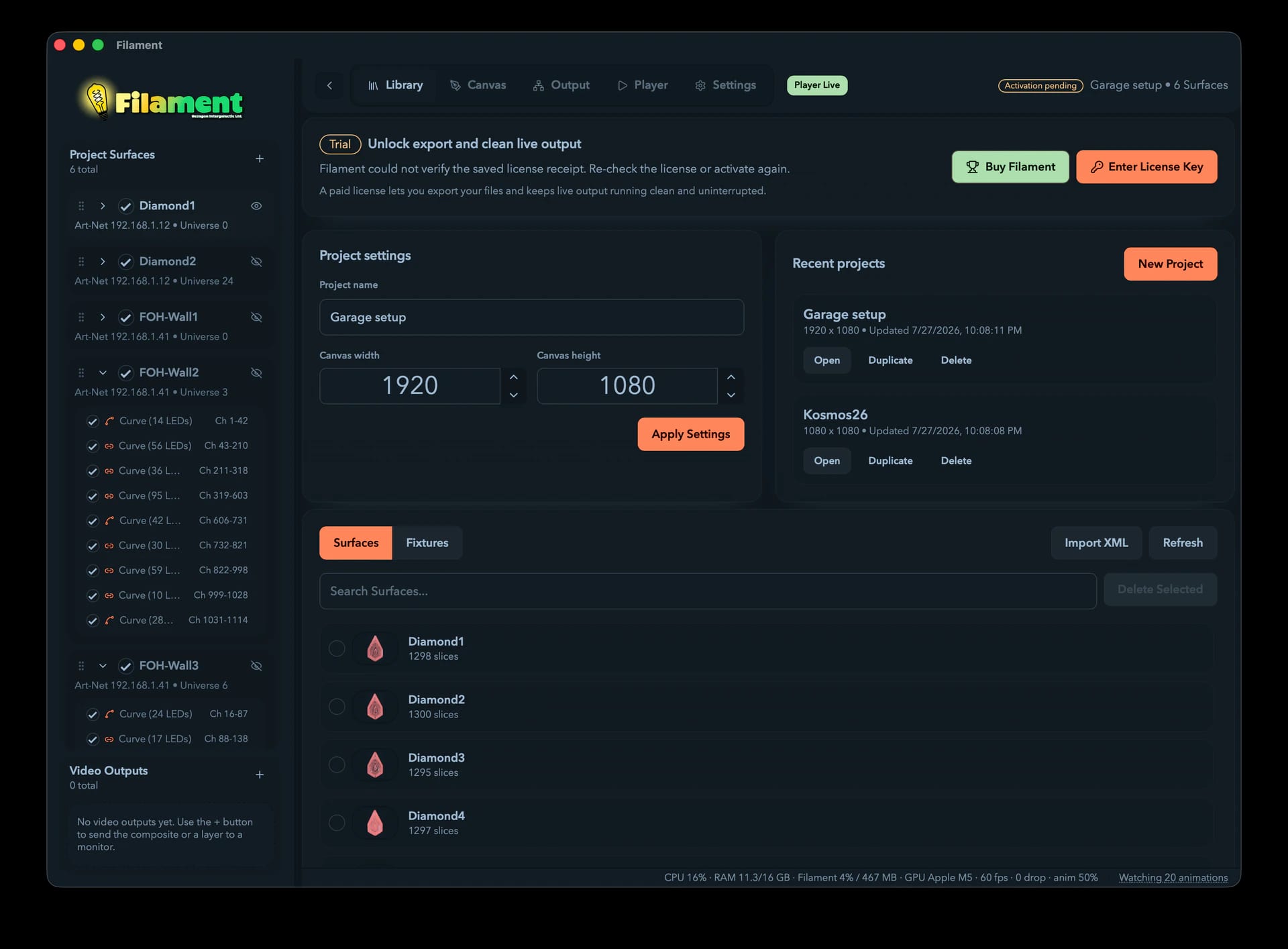
The Library is your front door and your parts bin. Up top is the project hub — Project settings and Recent projects. Below it, a browser switches between two libraries: Surfaces (saved DMX output configurations) and Fixtures (the kinds of LED pixel you map onto the canvas).
If you're new here, the one thing to do before drawing anything is get a fixture into your library. Skip that and the Canvas has nothing to make LEDs out of. Load Presets takes about a second and covers most strips.
Projects
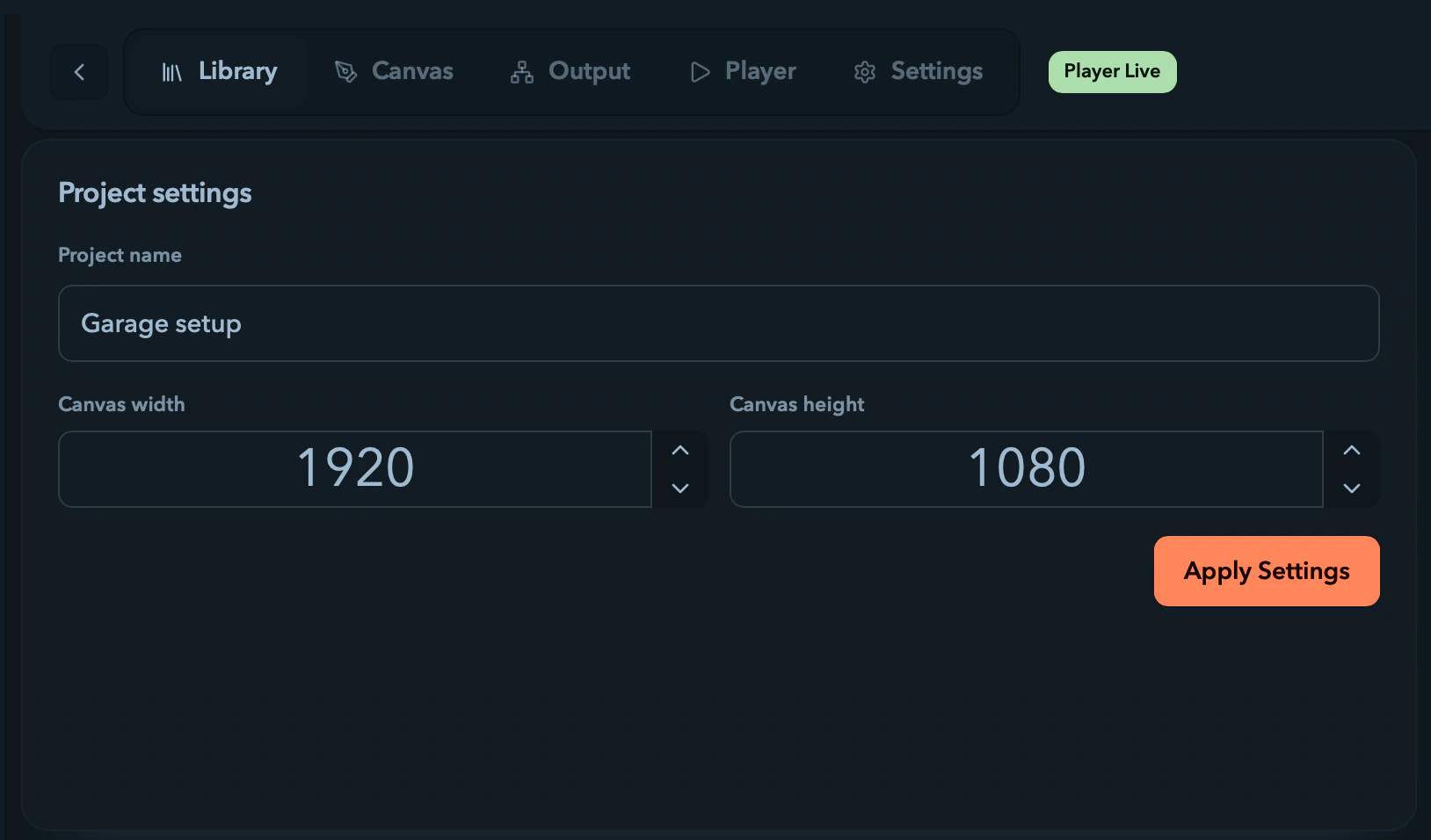
Before you draw anything, the Library page manages your projects:
- Project settings — rename the active project and change its canvas size (1–16384 px each side), then Apply Settings.
- Recent projects — your ten most recent, each with Open, Duplicate, and Delete (delete asks first).
- New Project — opens the project-creation dialog.
On a trial, or if your license needs attention, a notice bar appears here with Enter License Key and Buy Filament. See Licensing and Trial.
Surfaces vs. Fixtures
A toggle at the top of the browser switches between the two libraries — one at a time, with Surfaces selected by default.
- Surfaces — complete DMX output configurations (slices, channel assignments, fixture mappings) you reuse across projects.
- Fixtures — definitions of a single LED pixel or pixel grid, the building blocks you place on the canvas.
Surfaces
A Surface is a complete DMX output configuration — a saved snapshot of one controller's worth of slices (LED positions, channel assignments, fixture mappings), in the shape Resolume's Advanced Output uses. The Surface library lets you import existing Resolume setups and reuse them across projects.
Importing Surfaces from a Resolume XML
If you've already set up Advanced Output in Resolume, importing that XML is the fastest way to bring a rig into Filament. Click Import XML in the Surface header to open the Import Surfaces wizard:
- Choose file — pick your Resolume Advanced Output XML. The wizard parses it.
- Preview — every Surface it found is listed with its slice count, DMX channel range, and a badge per fixture used showing whether that fixture is already in your library. Fixtures missing from your library are embedded from the XML and brought in as part of the import, so there's no separate cleanup. Tick Surfaces individually or use
Select All/Select None, then clickImport N. - Done — the wizard reports how many imported and lists any per-Surface errors. Imported Surfaces are ready to add to any project.
Browsing and managing Surfaces
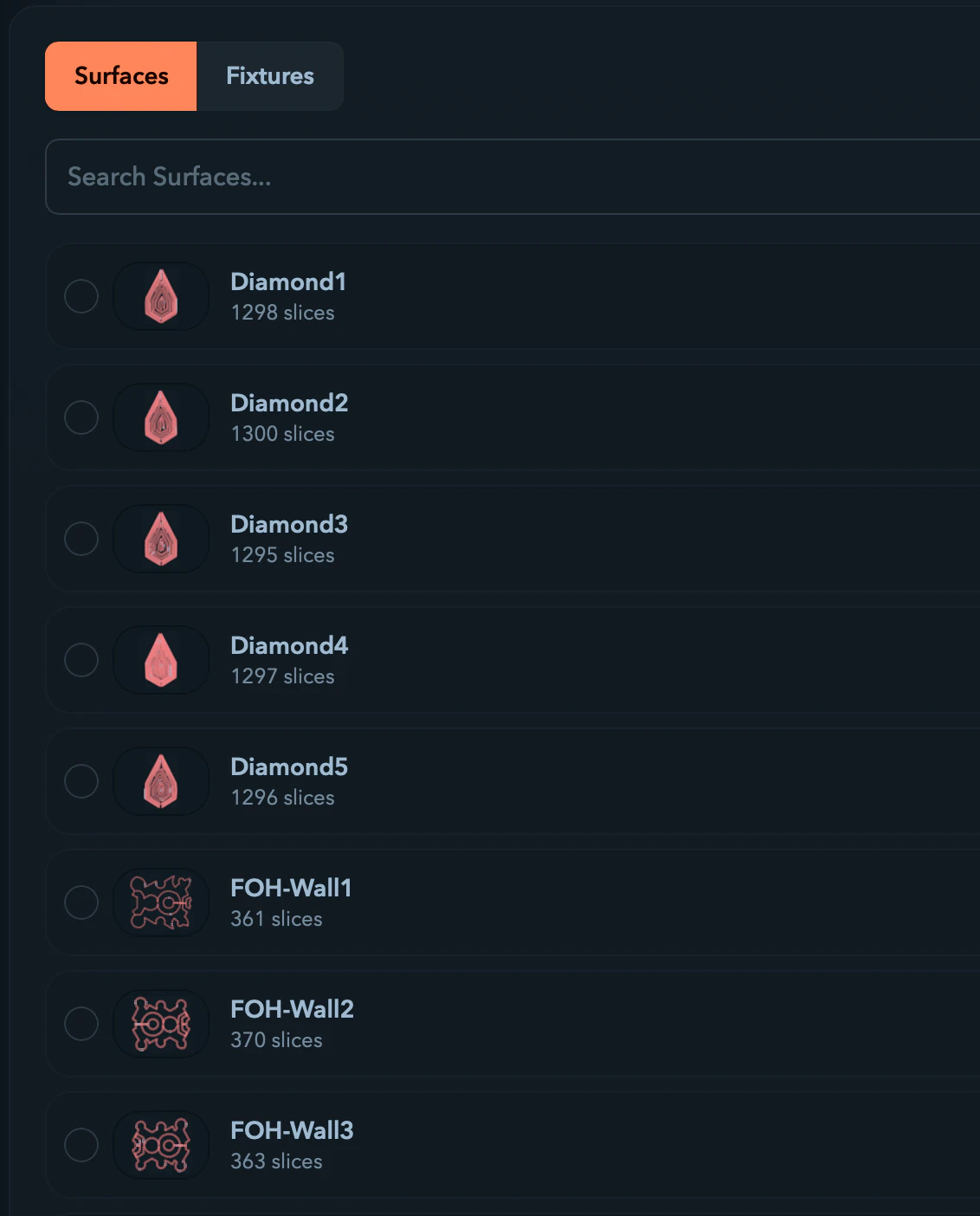
Filter by name with the search box. Each row has a selection checkbox, a geometry thumbnail, the name, and its slice count. Double-click a card to rename it inline. Right-click a row for:
| Action | What it does |
|---|---|
Add to Project | Adds it to the open project (disabled when none is open) |
Rename | Inline rename — Enter to confirm, Escape to cancel; a blank name is rejected |
Delete | Removes it from the library, with confirmation |
To delete several at once, tick their checkboxes and click Delete Selected (N) — confirmed and not undoable. Refresh reloads the saved Surfaces from storage, handy when iterating on variants.
Adding a Surface to your project
Two ways to add a library Surface to the open project:
- Drag the card into the project sidebar — a drop zone appears at the top while you drag.
- Right-click →
Add to Project— without leaving the Library.
To save a Surface you've been editing back to the library, right-click its name in the project sidebar and choose Save to Library.
Thumbnails
Each Surface's thumbnail is built from its slice geometry — colored polygons whose opacity scales with LED count, so denser slices read darker. They're cached per-Surface (keyed by last-updated time) so they reload instantly. A still-loading thumbnail shows ...; one that failed shows N/A.
Fixtures
A fixture describes a single LED pixel or pixel grid — the fundamental unit that maps to DMX channels. You need at least one fixture definition in your library before placing any LEDs on the canvas.
What a fixture definition contains
- Name — a label like "WS2812 Single LED" or "RGB Matrix 8x8".
- Width × Height — the pixel grid, each 1–512. A strip pixel is 1×1; a panel might be 8×8 or 16×16.
- Color format — the order DMX channels map to red, green, and blue.
- Gamma — a perceptual brightness curve, 1.0–3.0.
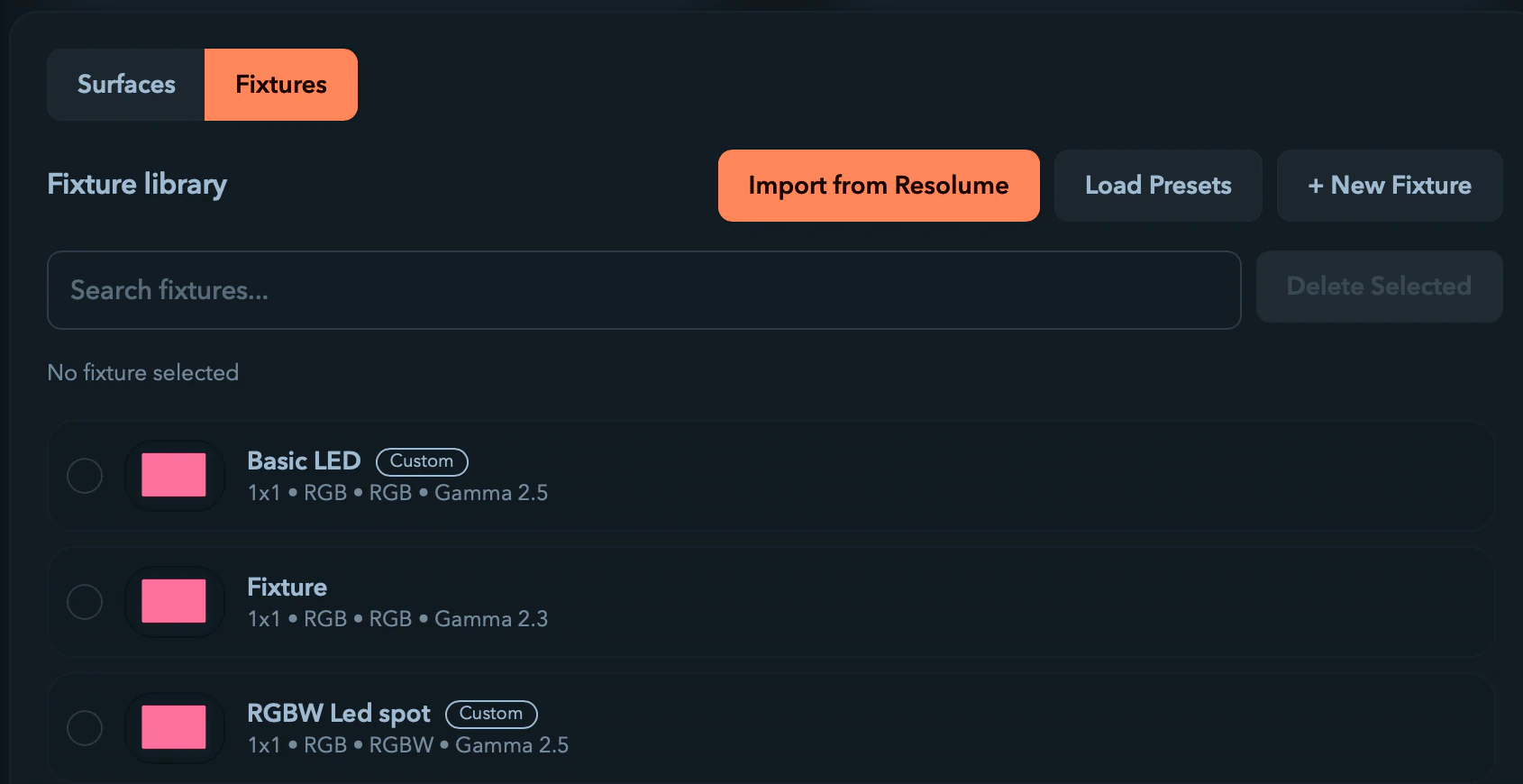
Each row shows W×H • FORMAT • Gamma N.N, plus a Custom badge on fixtures you created.
Color format matters — especially for WS2812
WS2812-based LEDs (the most common addressable type, in most strips) are wired GRB, not RGB. If colors look wrong on the real hardware — red showing as green, and so on — color format is the first thing to check.
- WS2812B, SK6812 →
GRB - Most APA102, SK9822 →
RGB - Generic or unusual strips → check the datasheet
The format choices differ by dialog:
| Dialog | Available formats |
|---|---|
Create New Fixture | RGB, GRB (WS2812), BGR |
Edit Fixture | RGB, GRB, BGR, RBG, GBR, BRG |
For a less common channel order, create the fixture first, then change its format in the edit dialog.
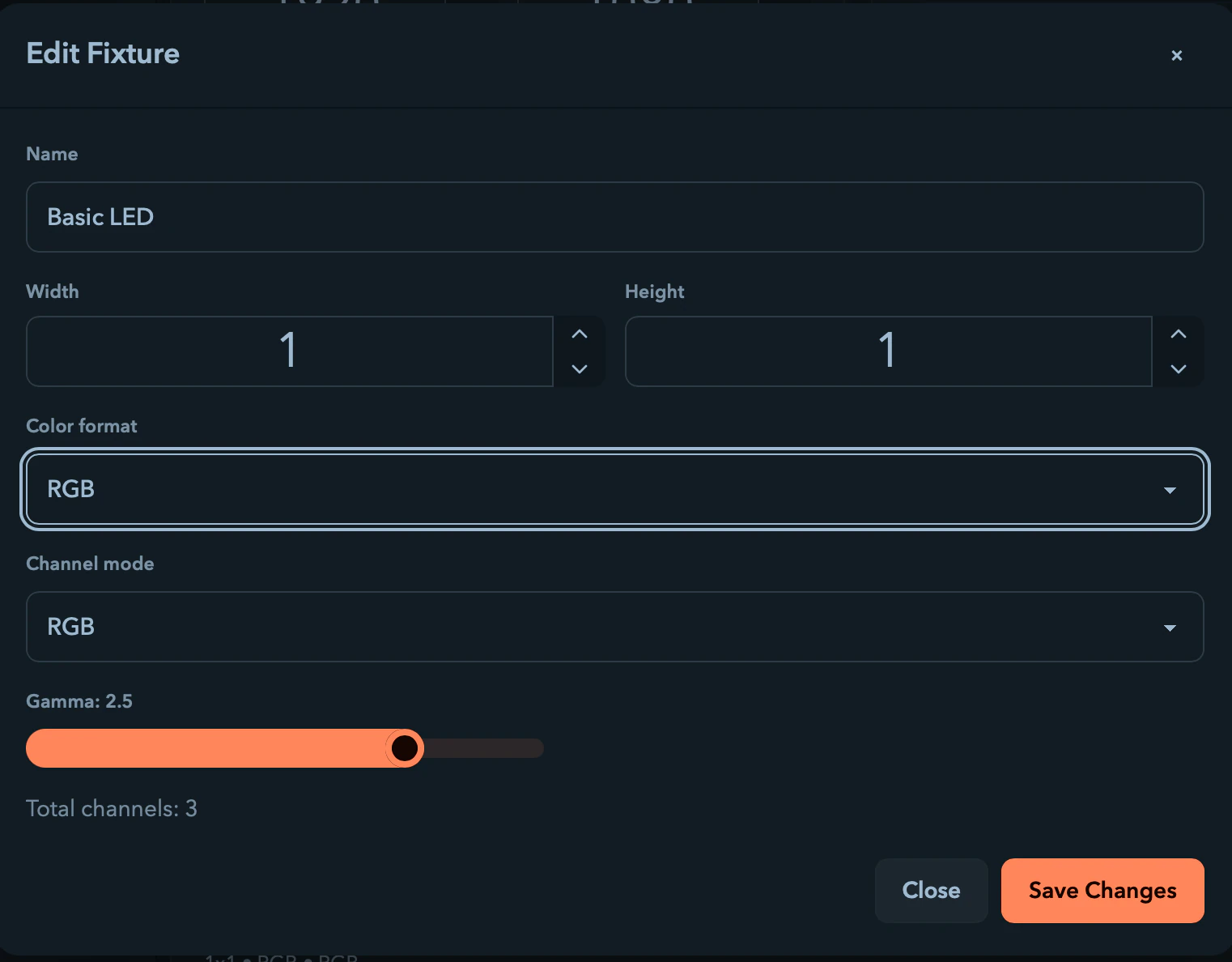
Gamma correction
The gamma slider (1.0–3.0, step 0.1) applies a power curve to the output. LEDs are physically linear, but we perceive brightness logarithmically, so gamma tunes how mid-range brightness feels on the fixture. Default is 2.5 — leave it near there unless the fixture looks visibly off.
Getting fixtures into your library
The Fixture header offers three ways to populate the library:
- Load Presets (easiest) — imports six ready-to-use definitions: a WS2812 Single LED, WS2812 strips of 16, 30, 60, and 144 pixels, and an RGB Matrix 8x8. Presets you already have are skipped.
- Import from Resolume — reads your Resolume fixture library directory (set in Settings) and imports every definition it finds. The quickest path if you already use Resolume with your LEDs.
- Create a custom fixture —
+ New FixtureopensCreate New Fixture: a required Name, Width and Height (1–512 each), Color format (RGB,GRB (WS2812), orBGR), and Gamma (1.0–3.0, default 2.5).Total channelsshows live as width × height × 3.
Editing, exporting, and deleting fixtures
Click a fixture to select it (its specs show above the list); double-click a row to select it and open the Fixture editor in one move. Right-click a row for:
| Action | What it does |
|---|---|
Edit | Change name, dimensions, color format (all six orders), or gamma |
Export to Resolume | Writes the definition to your Resolume fixture library directory |
Delete | Removes the fixture, with confirmation |
Delete several at once by ticking checkboxes and clicking Delete Selected (N) — confirmed and not undoable.
Export to Resolume is a paid feature. On a trial or unlicensed install it's blocked with Export requires a paid Filament license. Open Settings -> License to activate one. See Licensing and Trial and Activating a License.