Show Mode
Loop a show or a region seamlessly for days, navigate cue markers theater-style, and autoplay on launch so an unattended installation runs itself.
A finished arrangement is a show: it needs to loop without a seam, jump between cues on command, and start itself when the machine powers on. Show mode is the set of tools that take a playable timeline and make it run unattended — in a gallery, a lobby, a theater — for as long as the power stays on.
Looping the show
There are two ways to loop:
- A loop region — a
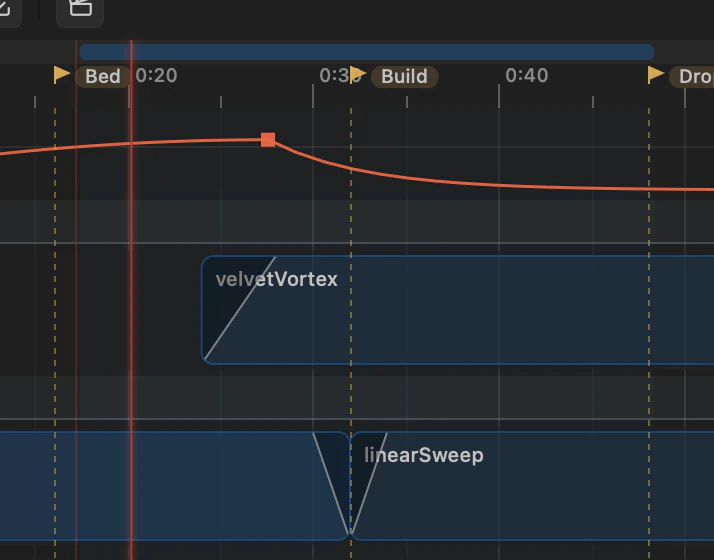
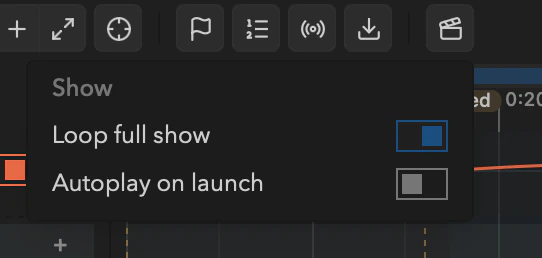
[start, end)span the playhead wraps within. Drag in the ruler's loop band to create or resize it, double-click the band to toggle it, or use the loop toggle in the transport and theLkey. Drag its body to slide it. - Loop the full show — a switch in the Show dropdown (in the toolbar) that wraps the whole timeline, start to end, whenever no loop region is enabled. An enabled region always takes precedence.
Either way the wrap is seamless — video pre-rolls the loop-start frames and audio crossfades across the boundary, so there's no visual gap and no audible click. Because playback is frame-exact, the loop lands on precisely the frame you'd reach by seeking there, and it holds that way for days with zero drift.
Cue markers
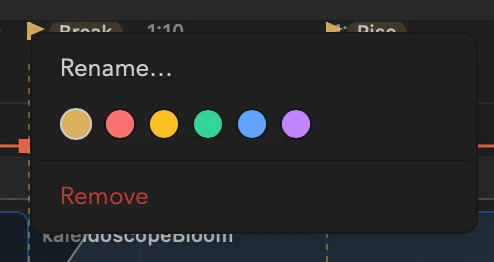
Markers are named points on the timeline — cue points for a show. Press M to drop one at the playhead (and again on an existing marker to rename it). On the ruler, drag a flag to move it, double-click to rename, and right-click for its color or to remove it. Markers also double as snap targets when you're editing.
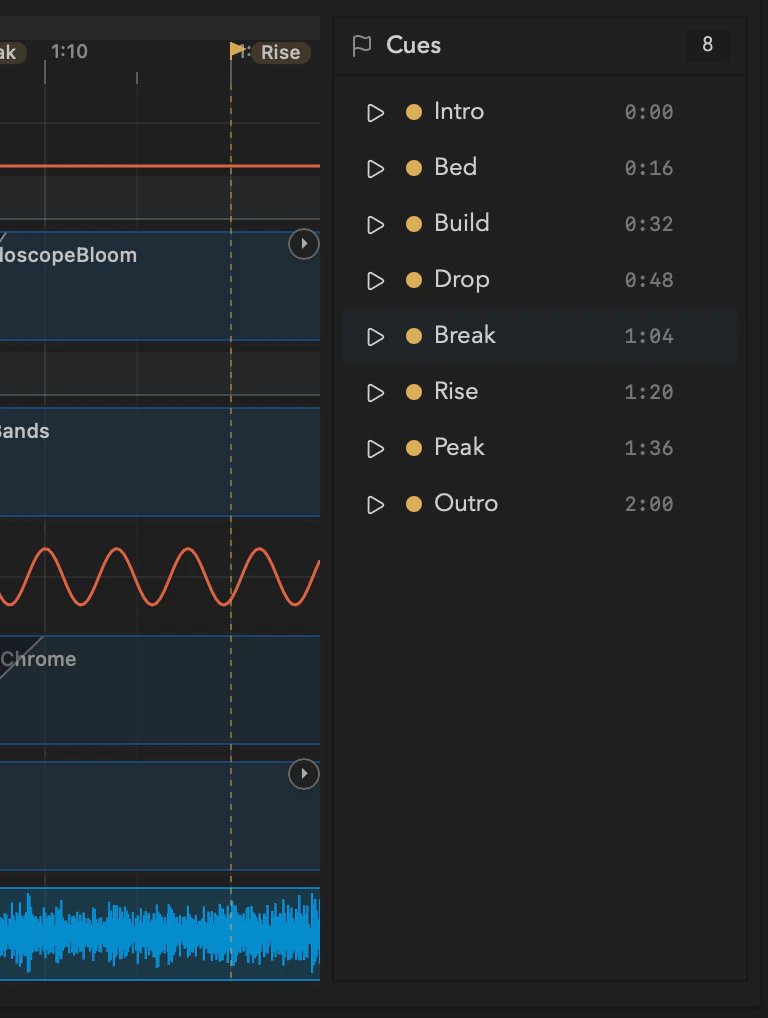
The cue list panel lists them in order with name, time, and color, and clicking one jumps the playhead there.
GO
The previous / next cue buttons in the transport (and their keys) are a theater-style GO: from wherever the playhead is, jump to the cue before or after it. Fire GO while the show is playing and it keeps playing — you've cued the next scene. Fire it while paused and it stays paused with that frame on the output, ready for your call.
Autoplay on launch
Turn on autoplay on launch in the Show dropdown and a project in Arrangement mode starts playing the moment it loads — seeking to the loop start (or the top) and rolling. Combined with Filament's crash recovery, this is what makes an installation self-healing: if the machine reboots or the app restarts, it reloads the project and returns to showing the work, no human required. (Autoplay stands down if the app has to open into an error state, so it never fights a problem that needs attention.)
Running unattended
Show mode is built for the long haul:
- No drift. Time is kept in seconds with sub-nanosecond resolution, the loop wraps by exact arithmetic, and every value is computed fresh from the playhead each frame — nothing accumulates error over a 24-hour run.
- Bounded resources. Playback holds no growing state, and looping decoders are recycled rather than reopened, so memory stays flat overnight.
- Steady output. DMX keeps its every-frame cadence straight through a loop wrap — downstream fixtures never see a hiccup.
Rescuing a show by hand
The Session / Arrangement toggle is deliberately prominent. If you need to take manual control of a running installation, flipping to Session is a two-click rescue — the grid is exactly as you left it — and flipping back re-enters the show. (Autoplay only fires on launch, so returning to Arrangement by hand won't restart the piece from the top under you.) Blackout and master brightness stay reachable in both views the whole time.
Audio Tracks
Drop an audio file onto a timeline audio track, see its waveform, mix it with volume, mute, solo, and routing, and arrange your visuals against the beat.
Capture & Export
Record a live Session performance straight into an editable arrangement, then render the finished show to a video file and a portable, re-targetable DMX bundle.