Capture & Export
Record a live Session performance straight into an editable arrangement, then render the finished show to a video file and a portable, re-targetable DMX bundle.
Two capabilities bookend the Timeline. Capture turns a live performance into an editable arrangement, so you can play a show in by hand and then refine it. Export turns an arrangement into standalone files — a video and a DMX recording — that run without Filament open.
Performance capture
Composing on a blank timeline is one way to work. Often it's faster to play the show — cue clips, ride knobs, feel the timing — and capture the result to edit. Capture records a live Session performance into an arrangement region, the way a DAW's arrangement-record captures a jam.
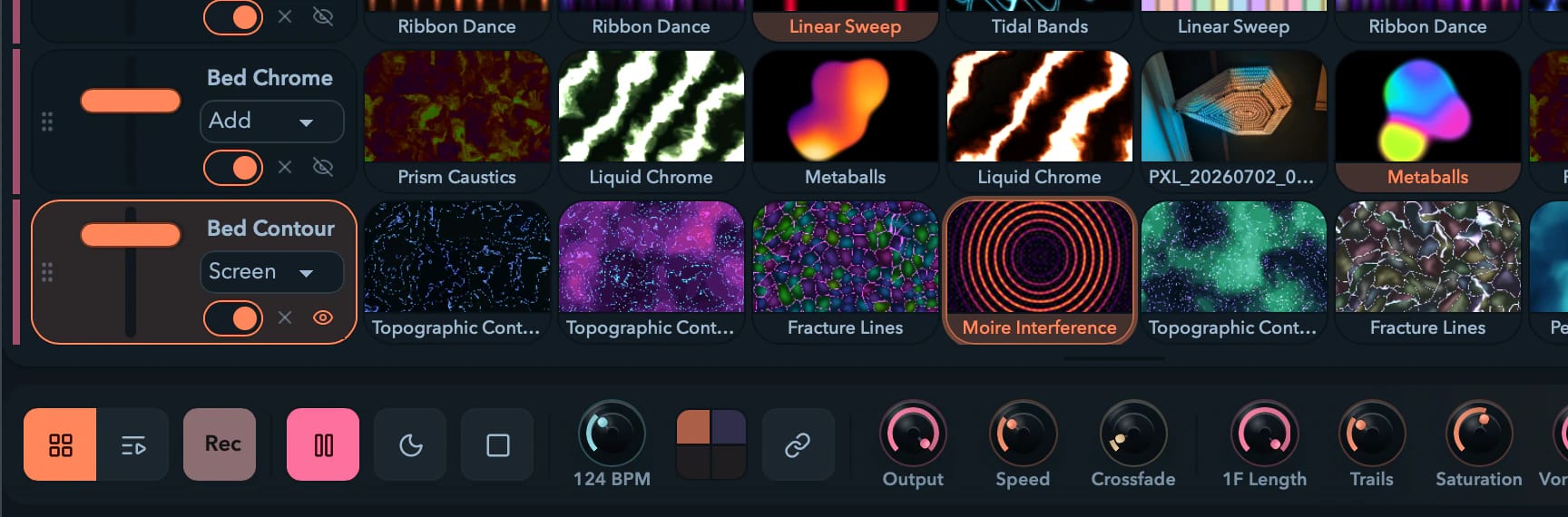
To capture:
- In the Arrangement toolbar, click Capture performance. Filament flips to the Session grid and lights a recording indicator on the transport.
- Perform exactly as you would live — cue cells by hand or on autopilot, crossfade, ride effect knobs, tweak clip parameters. Nothing about live playback changes.
- Press Stop (or switch views) to end. Filament jumps back to the Timeline with the new region selected and zoomed to fit.
Everything that made the moment gets recorded:
| While performing | Captured as |
|---|---|
| Cueing a clip (by hand or autopilot) | A clip on that layer's track, starting when you fired it |
| Stopping a layer | The clip ends |
| A master crossfade | An overlap of the same length between the two clips |
| Riding layer opacity, master brightness, effect knobs… | Automation lanes |
| Tweaking a launched clip's own parameters or clip effects | Per-clip envelopes on that clip |
Because capture taps the show at its source, a performance driven from a MIDI or OSC controller records exactly the same as one driven with the mouse. Recorded knob moves are thinned into light, hand-editable curves.
The result is a normal arrangement — clips wrap copies of your content (so later grid edits never rewrite the recording), each video keeps the transport position it launched at, and the whole capture lands as one undo entry. It's added at the end of the timeline and never overwrites what's already there. From there, edit it like anything else.
Export
When the show is ready, export it to files that play back without the app. Open the Export dialog from the Arrangement toolbar.
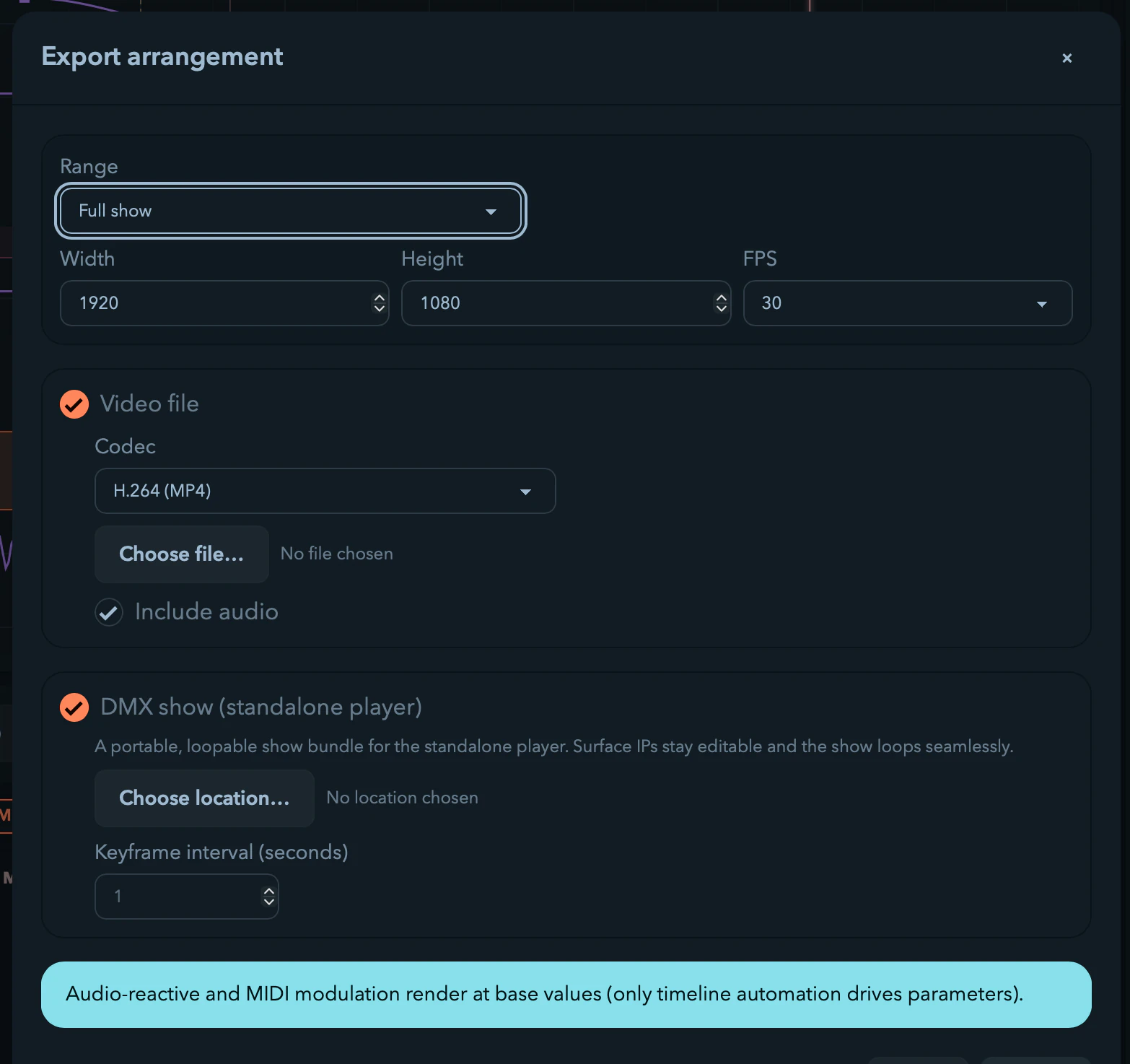
Options
| Option | Choices |
|---|---|
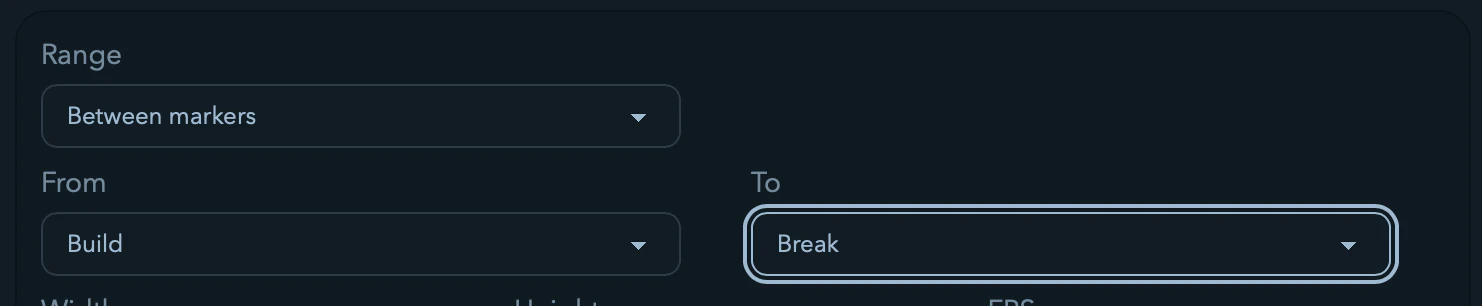
| Range | Full show, the loop region, or between two markers (pick a from- and to-cue). |
| Resolution | The composition's native canvas size (the default), 1080p, or a custom size. |
| Frame rate | The output fps. |
| Video codec | The encoders your build supports — H.264, HEVC, and ProRes among them. |
| Video | Render the video file, with audio on or off. |
| DMX | Bake the DMX show bundle. |
Pick a destination and Filament renders frame by frame, showing a frame counter, elapsed time, and ETA, with a cancel that cleans up any partial file. Live outputs pause for the duration and resume automatically when it's done. Export produces up to two artifacts:
- A video file — the post-master composite (or a chosen video output's view) over the range, at your resolution and frame rate, muxed with the mixed audio tracks.
- A DMX show bundle (
.dmxshow) — a portable, re-targetable, loopable recording of the baked DMX for the standalone player. It stores the per-frame channel data plus a manifest of Art-Net / sACN destinations you can re-point at the install without re-exporting, and it loops seamlessly. (DMX export needs no video encoder, so you can bake a lighting show on its own.)
Deterministic by construction
Export is the Timeline's frame-exact promise cashed in: it steps time frame by frame and renders through the very same engine the live show uses, so the file is the show. Two exports of the same project come out bit-identical. Live-only inputs sit outside that guarantee and are handled predictably — audio-reactive and MIDI modulation render at their base values, and external sources render a placeholder — which the dialog flags up front.
Licensing
Producing a standalone artifact is a paid capability, like Resolume export — on the trial you can open the dialog, but writing the files prompts you to activate. Performance capture is unrestricted; it only authors an in-app arrangement. See Licensing and Trial.