Tempo & Sync
Set the beat by hand or follow an external clock — Ableton Link, Pro DJ Link, or MIDI Clock — so beat-synced animations, effects, and envelopes land on the music.
A lot of Filament rides the beat: beat-synced effects, BPM-locked video, tempo-locked envelopes. All of it follows one master tempo, which you set by hand or hand over to an external clock so your visuals lock to the DJ.
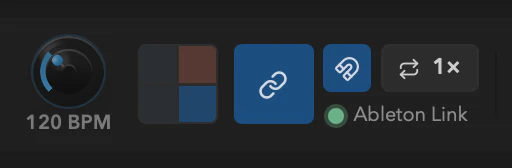
Setting tempo by hand
The tempo cluster sits between the transport buttons and the master knobs:
- BPM knob — drag to set the tempo; the live value rides in the label (
124 BPM). - Tap tempo — the 2×2 pad. Tap along with the music, or press
Tfrom the keyboard. It doubles as a metronome, lighting clockwise from the accent-tinted downbeat so you can read the bar at a glance. - Resync — re-anchor the beat to now, so the downbeat lands where you tapped.
This is the default Internal clock — Filament's own free-running transport.
Following an external clock
In a real rig the tempo authority is usually the DJ, not the VJ. The master tempo source selector (its label is Master tempo source) lets Filament follow an external clock instead.
| Source | What it is | Carries phase? |
|---|---|---|
Internal | Filament's own manual / free-running clock (the default). | n/a — you set the downbeat by hand |
Ableton Link | The cross-vendor standard for software DJs and Link-capable gear (rekordbox, Serato, Traktor, Live, many controllers) over the local network. | Yes — tempo and beat phase |
Pro DJ Link | Pioneer CDJ/DJM hardware on the same wired subnet. | Yes — beat-in-bar from the tempo-master device |
MIDI Clock | 24-PPQN clock from a controller, mixer, or DJ app. | Only after a transport Start or a manual downbeat |
Internal is always the first option and one click away — external sync never auto-engages, so there are no surprise switches mid-show.
When an external source is master, the BPM knob goes read-only: it still shows the live effective BPM but you can't drag it. Switch back to Internal to set BPM by hand again.
Disabled sources show (off)
The selector lists every external source, but one you haven't enabled in settings is grayed out with an (off) suffix — Ableton Link (off). Enable the transports your gear uses under Settings → Tempo Sync first. (The enabled set is a per-machine rig setting — see persistence.)
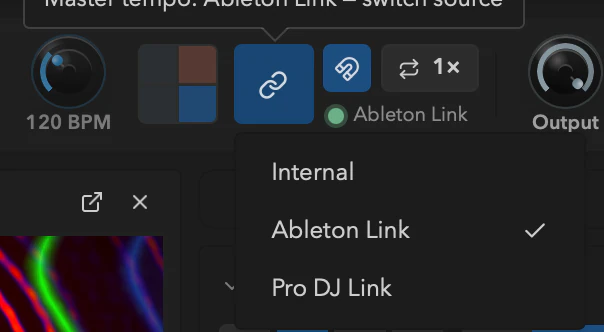
Sync controls
Once an external source is master, three extra controls appear:
- Phase lock (the magnet button) — beat-phase lock for the active source, on by default. On, it aligns Filament's beat and bar to the source's downbeat so beat-synced motion sits on the music; off follows BPM only. It only does something for sources that provide phase (Ableton Link and Pro DJ Link; MIDI Clock once a
Startor manual downbeat has anchored the bar). - Tempo multiplier (the loop button) — cycles ½× → 1× → 2× for half- or double-time shows, snapping to exactly 0.5×, 1×, or 2× the incoming tempo.
- Set downbeat — the tap pad, repurposed. While any external source is master, the pad stops setting tempo and instead re-anchors the bar: tap on the DJ's downbeat to align Filament's. This is the primary way to land the bar on MIDI Clock (bare clock has no downbeat) and to correct a mis-anchored CDJ.
There's no on-screen phase-offset nudge for trimming cable or processing latency — the backend supports a phase offset, but no control is wired to it in this build.
The status pill
A status pill at the end of the cluster tells you exactly where sync stands while an external source is master:
| Pill text | State | Meaning |
|---|---|---|
Ableton Link · 2 peers, Pro DJ Link · CDJ-3000, etc. | Connected | The source is producing usable tempo. Link appends the peer count; Pro DJ Link appends the tempo-master device when known. |
Sync lost — holding 124 BPM | Freewheeling | The signal dropped, so Filament holds the last known BPM. A warning color, not an error — the show keeps running. |
Waiting for signal… | Enabled, no signal yet | The source is on but nothing's broadcasting (no peers, packets, or clock). |
Enable in Settings → Tempo Sync | Disabled | You selected a source that isn't enabled on this machine. |
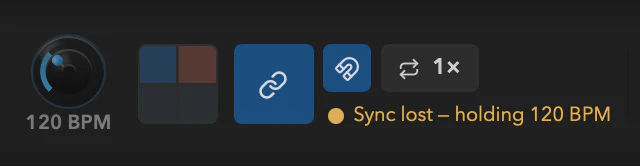
The pill updates on a low-rate event, separate from the per-frame BPM, so there's no per-frame churn.
Freewheel on dropout
If the external signal drops, Filament doesn't stall — it freewheels at the last known BPM so the bar keeps marching, and the pill flips to Sync lost — holding <BPM>. Each source has its own freshness rule:
| Source | Counts as "live" | Drops to freewheel when |
|---|---|---|
Ableton Link | At least one peer and a session captured this tick | Peers drop to 0 |
Pro DJ Link | A beat/status packet from the master within ~2 s | No packets (cable out, or the DJ stopped broadcasting) |
MIDI Clock | A clock pulse within the last ~500 ms, with no Stop | A gap in the clock, or a transport Stop |
When peers, packets, or pulses return, Filament re-locks on the next tick. The held BPM survives source switches and is cleared only when you select Internal.
MIDI Clock transport messages
MIDI Clock carries System Real-Time transport bytes alongside its ticks, and Filament acts on them:
- Start resets the beat count and anchors the bar — treated as a downbeat, so phase lock can align from then on.
- Stop marks the source as not running, so the show freewheels at the last BPM rather than stalling.
- Continue resumes without re-anchoring the bar.
If your controller or app sends bare clock with no Start, use Set downbeat to anchor the bar yourself.
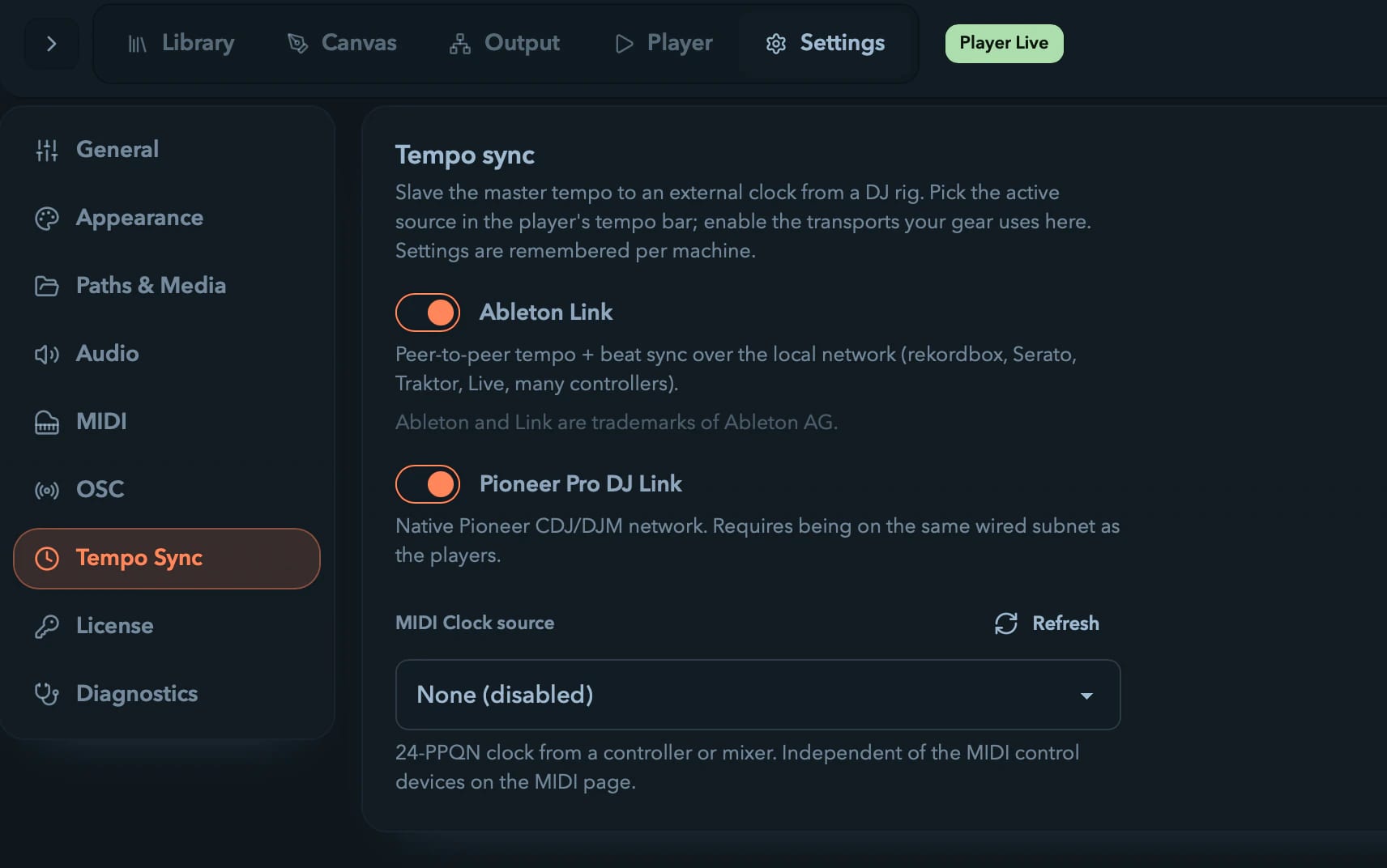
Configure your rig: Settings → Tempo Sync
Enable devices under Settings → Tempo Sync (Tempo sync). You enable the transports your gear uses here; you pick the active source in the player's tempo bar.
Ableton Link— an enable toggle for peer-to-peer tempo and beat sync over the local network. When Link is active and connected, the note shows the live peer count.Pioneer Pro DJ Link— an enable toggle for the native Pioneer CDJ/DJM network; requires being on the same wired subnet as the players. The network-interface picker isn't in this build yet — it arrives with the Pro DJ Link transport.MIDI Clock source— a single-device picker of MIDI input ports with aRefreshbutton, defaulting toNone (disabled). A chosen-but-unplugged device stays listed with(disconnected). This 24-PPQN clock source is independent of the note/CC devices on the MIDI page.
What persists and what does not
Tempo state is split deliberately:
- Per-machine rig config — which transports are enabled (
Ableton Link,Pioneer Pro DJ Link), the chosen MIDI Clock device, and the Pro DJ Link interface. Saved on the machine and reloaded on launch, not stored in the project, because rigs differ from venue to venue. - Live session state — the active source, phase-lock on/off (default on), the tempo multiplier (default 1×), and the phase offset. These live in the running transport and aren't persisted, so after a relaunch you start on
Internal.
In Arrangement view
External sync is a Session-view idea. A composed Timeline runs on its own wall clock — a 12-minute piece takes 12 minutes, and nothing outside the app gets to stretch it — so tempo sync shows a suspended in Arrangement state and picks back up when you flip to Session. The project BPM still drives the timeline's beat grid; it just doesn't drive the playhead.
What follows the beat
Once the tempo is set — by hand or by an external clock — it drives:
- Beat-synced effects (strobe, wave, slices, and others)
- BPM-locked video clips (Video Clips)
- Beat-locked envelopes and LFOs (Modulation)
- Tap-tempo and resync triggers you've mapped to MIDI
OSC Control
Drive Filament over the network with OSC — send to a documented /filament/... address to move any parameter or fire any action, with feedback so a phone, tablet, console, or Max patch stays in sync. No cables, no mapping step.
Master & Preview
The master bar and the four live preview surfaces — transport, global controls, the master modulation rack and effects chain, the dashboard, and previews that match your LEDs exactly.