Video Clips
Browse your media folders, drag video files onto the grid, and tune each clip's transport, trim, play mode, and fit.
Video files play in the grid just like animations. Point Filament at the folders where your clips live, then drag them onto cells and tune playback per clip — direction, speed, trim, play mode, and how the frame fits your output.
Watched media roots
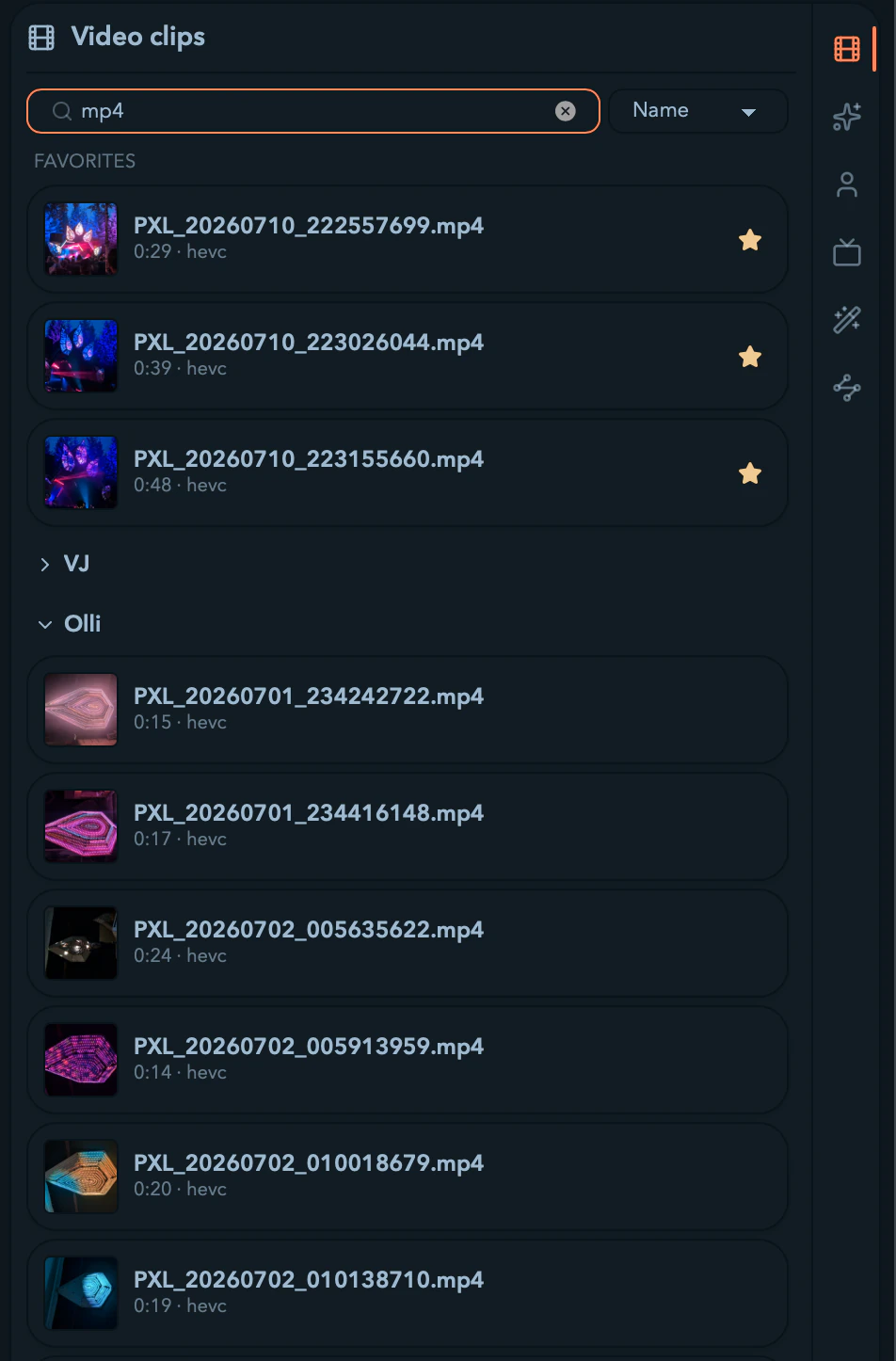
Filament browses media roots — folders you register once and reuse across projects. Each shows as a collapsible tree in the Files tab of the library drawer, scanned on demand and kept live by a file watcher, so clips you drop into a folder appear without a manual refresh.
Add a root from the Files tab (Add folder at the bottom) or from Settings → Paths & Media, where the Media roots card also lets you reorder, rename, and remove roots. You can register up to 16; the button disables at the cap.
Removing a root never touches files on disk — Filament just stops browsing that folder, and cells pointing into it show as missing until you re-add it.
Clips are referenced relative to their root, so projects move cleanly between machines that share the same folder layout. Open a project elsewhere and Filament relinks each clip by its relative path — every video still points at the right file.
Browsing the Files tab
The tab caches a poster-frame thumbnail per video (so it opens fast on repeat visits), filters by file name, and sorts by Name, Modified, Duration, or Size. Star the clips you reach for often and they pin to a Favorites section at the top.
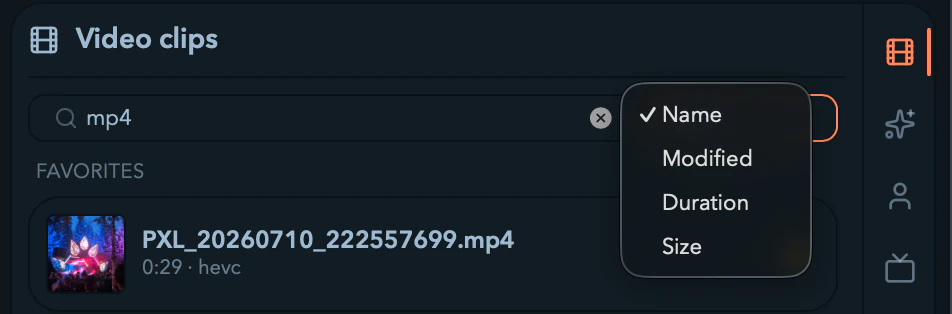
Only video files appear. Filament recognizes: mp4, mov, m4v, mkv, webm, hap, dxv, avi, gif, webp, apng, and prores. Everything else is ignored.
Getting video onto the grid
Two ways:
- Drag from the Files tab onto a cell, column header, or row header — the clip's native duration and poster come along, so the cell is ready instantly.
- Drag straight from Finder or Explorer. Drop several files at once and Filament fills consecutive cells to the right, creating columns as needed.
Dropping a clip loads it; it doesn't start playing. You launch the cell yourself (click it, or trigger it over MIDI), so a drop mid-show never interrupts what's already on screen. The clip's native duration fills in automatically, so autopilot advances at the right pace without you setting anything.
When a drop is rejected
Dragging from the OS only works for files under a registered media root. A file outside every root is skipped with a Folder isn't a media root warning — add its parent folder as a root first. A file that's under a root but can't be decoded triggers a Some files couldn't be decoded error listing the offenders; any clips that did resolve still drop in.
Per-clip video controls
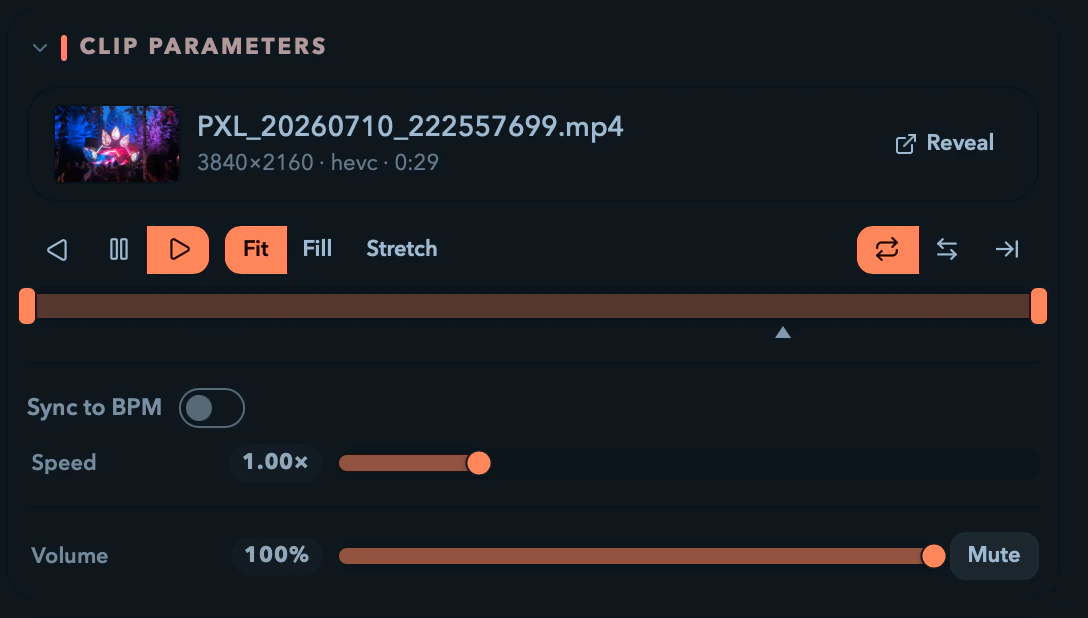
Select a video cell and the Clip parameters panel shows its poster, file name, and an info line — W×H · codec · M:SS, reading Probing… until metadata is ready — plus a Reveal button to open the file in Finder / Explorer. Below that are the transport and frame controls.
Direction, fit, and play mode
Three button groups sit in a row above the trim track.
| Control | Buttons | What it does |
|---|---|---|
| Direction | play backward · pause · play forward | Transport direction, independent of speed. Pause holds the current frame. |
| Fit mode | Fit · Fill · Stretch | How the frame maps to your output — letterbox, crop-to-fill, or stretch. |
| Play mode | Loop · Ping-pong · One-shot (hold end) | What happens at the trim edge — repeat, bounce, or play once and park on the last frame. |

Direction and Speed are separate: Speed is a magnitude-only rate multiplier, while the direction buttons choose forward, reverse, or paused. A One-shot clip plays through once and parks on its final frame until you retrigger the cell.
Trimming and scrubbing
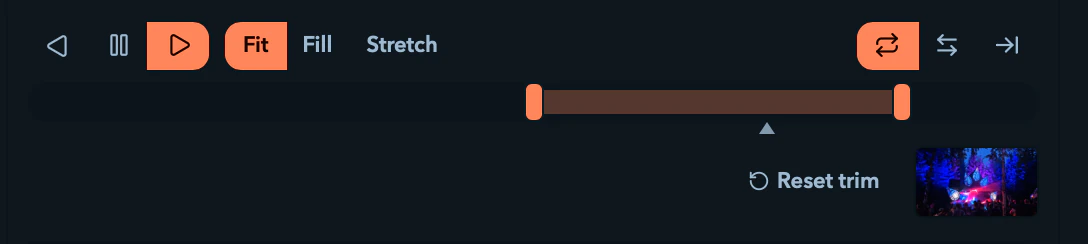
The trim track shows the clip's full length, with a shaded window between the in and out handles and a triangle marking the playhead.
- Drag a handle to set the in or out point — a tooltip shows the time like
12.34s. - Drag the playhead (or click the track) to scrub.
- The trimmed window becomes the clip's effective duration, so autopilot advances at the trimmed length, and with Sync to BPM on, it's the trimmed window that fills the musical loop.
- Set an in point past the start and a thumbnail of the trim-in frame appears, along with a Reset trim button that clears both points.
Trim is unavailable until the file has been probed; until then the panel says so instead of showing the track.
Speed and Sync to BPM
Sync to BPM is off by default, leaving a free Speed fader — 0.25× to 4.0×, shown like 1.50×.
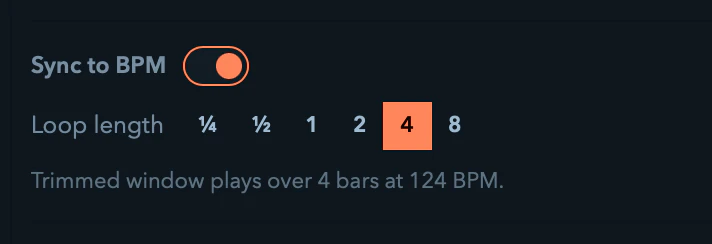
Turn it on and the Speed fader becomes a Loop length picker (¼, ½, 1, 2, 4, or 8 bars). Filament retimes the trimmed window to span that musical length at the current tempo, locking the clip to the master tempo. The first time you enable Sync it auto-detects a sensible loop length. If the clip is too short or long to fill the chosen length within its speed band, a warning tells you the rate clamps and the loop won't fill exactly.
Formats and decoding
Filament decodes the common VJ codecs — H.264, H.265/HEVC, VP9, AV1, HAP, ProRes, DXV, and animated GIF / WebP / APNG. On capable machines it decodes H.264, HEVC, and VP9 on the GPU so high-resolution clips stay smooth; HAP, DXV, ProRes, and AV1 decode on the CPU. Audio tracks are ignored — only the video stream is read.
Override the decode backend with the FILAMENT_PLAYER_VIDEO_DECODE_MODE environment variable: auto (the default — hardware where available, CPU fallback), cpu (force software), or hw (force hardware and fail loudly if a codec can't use it).
Missing media
If a watched root goes missing — an unplugged drive, say — cells that point into it dim and show a media missing badge while the rest of the show keeps running. Reconnect or re-add the folder and the clips re-bind on the spot. Filament runs the same check when you open a project, warning you up front if any clips can't be found.
Working with video cells
A video cell behaves like any other: right-click for the full cell menu — Launch, Copy / Cut / Paste, Rename, Duplicate to new column, Reveal in library, Remove — and double-click its name to rename inline (Enter commits, Escape cancels). Cmd/Ctrl + C / X / V move it around the grid, and a paste is an independent copy, so trimming one doesn't trim the other.
Effects and modulation on video
Video cells take effects and modulation exactly like animations: drop a color or glitch effect on, ride its parameters by hand, or drive them from audio, an envelope, or MIDI.