External Sources
Capture live video from other apps — NDI, Syphon, and Spout — straight into the Player grid and treat each feed like any other clip.
When you want another application to drive your LEDs — Resolume, a media server, a generative tool, a camera feed — Filament captures its live output and plays it in the grid as a clip. Each feed lives in a cell, mixes through the same layers, blend modes, and effects as everything else, and is cued by clicking that cell.
Three protocols cover the field:
| Protocol | What it is | Platforms |
|---|---|---|
| NDI | Video over the local network | macOS and Windows |
| Syphon | Local GPU frame sharing | macOS only |
| Spout | Local GPU frame sharing | Windows only |
NDI travels between machines on the same network; Syphon and Spout share frames between apps on the same computer. You only see senders your platform can read, so the External sources tab lists whatever's available where you're running.
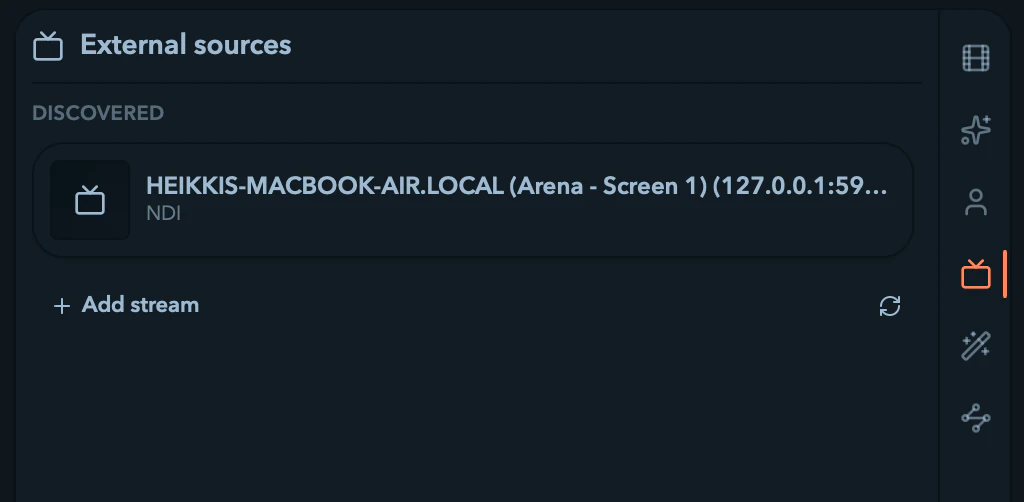
Connecting a source
- Start the other app and enable the output you want Filament to read (its NDI, Syphon, or Spout sender).
- In the Player, open the External sources tab in the library drawer — its TV icon in the rail, or
F4. - The tab scans once on open. Hit the refresh button at the bottom to rescan after a sender appears or disappears.
- Drag a source tile onto a cell, just like an animation or video clip.
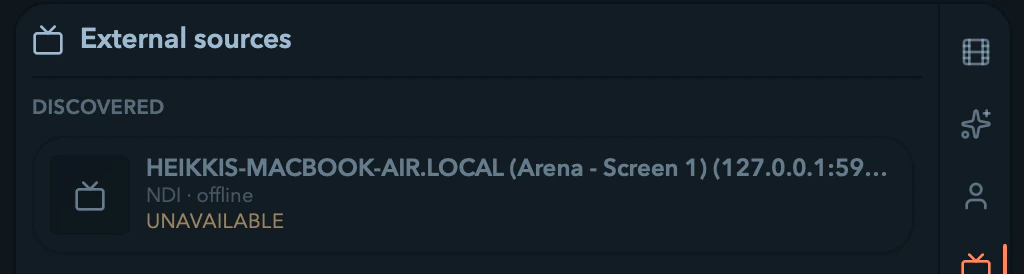
Each tile shows the source name with a provider tag — NDI, SPOUT, or SYPHON — and adds · offline if the source has gone quiet. A refresh that fails throws an External sources refresh failed toast but leaves the existing list in place, so an in-flight drag is never broken.
The cell shows a TV icon rather than a thumbnail, since its content is live — the frames appear in the preview (see Master & Preview). Every cell referencing the same source gets its frames from a single capture, so you can place one feed across several layers or columns without decoding it more than once.
Behavior during a show
External cells behave like other clips, with three differences that matter on stage.
Connection-loss blackout
If a source stops sending mid-show — its sender closes, the NDI machine drops off the network, a Syphon or Spout server quits — the cell goes black on the next render tick. Filament doesn't hold the last frame or fall through to anything else; the layer's contribution clears cleanly to black so the rest of your composite keeps running. (This is separate from a tile going Unavailable in the library, which is just a discovery signal — the blackout is the show-critical part that protects your output the instant frames stop.)
Automatic reconnect
A blacked-out cell keeps retrying on its own, roughly every 900 ms, as long as that source is still placed in a cell. When the sender returns, the cell resumes rendering — no re-dragging, no re-cueing.
Autopilot skips external cells
The key gotcha for live use: autopilot never advances into an external cell. As a layer's autopilot cycles its filled columns (in order, reverse, or shuffle), it steps only through animation and video cells. If a layer's only filled cells are external, autopilot has nothing to advance and the layer effectively pauses.
External cells are still fully manually cueable — click one to launch it. But cueing one doesn't restart autopilot for that layer; cue an animation or video cell to put autopilot back in motion.
| Cell content | Autopilot advances into it? | Manually cueable? |
|---|---|---|
| Animation | Yes | Yes |
| Video | Yes | Yes |
| External (NDI / Syphon / Spout) | No | Yes |
| Empty | No | n/a |
Library tile states
The External sources tab reflects what discovery currently sees.
| Tile state | What it means |
|---|---|
| Available | The sender is live and discoverable; drag it onto a cell. |
· offline tag | Known but not currently sending. The tile stays so you can still place it; the cell reconnects when it returns. |
Unavailable | Dropped out of the latest scan. Kept for one discovery cycle so an in-flight drag isn't broken, then it disappears on the next scan. |
Crossfading to and from a feed
Cross-source crossfades work. Cue from one cell to another with either side external and the layer mixes the incoming and outgoing content — feed against animation, or whatever exists on each side — over the master crossfade window, exactly as it would for two animations. See tempo and the master crossfade for how the timing is set.
Fitting and styling the incoming frame
External sources share the same effects and modulation as everything else. To reorient or reframe a feed, drop a transform effect on the cell or layer to scale, rotate, or reposition it before it composites; reach for color and stylize effects to recolor or treat it.
Video Clips
Browse your media folders, drag video files onto the grid, and tune each clip's transport, trim, play mode, and fit.
Effects
Drop GPU effects onto a clip, a layer, or the master output, chain them, recall presets, and ride their parameters live — blur, glitch, color, trails, and your own shaders.