Animations & Palettes
Browse Filament's built-in animation catalog, drop clips onto the grid, tune them live with presets and BPM-synced playback, and re-tint everything with color palettes.
Animations are Filament's generative clips — small GPU shaders that draw a frame of color many times a second. They're the bread and butter of a show: palette washes, sweeps, and noise textures. Palettes are the colors those animations reach for. Every built-in animation is palette-aware, so switching the palette re-tints the whole look instantly — same motion, new mood.
This page covers finding animations, dropping them on the grid, and dialing them in live. Building palettes has its own page at Palettes; writing your own clips is in Custom Animations.
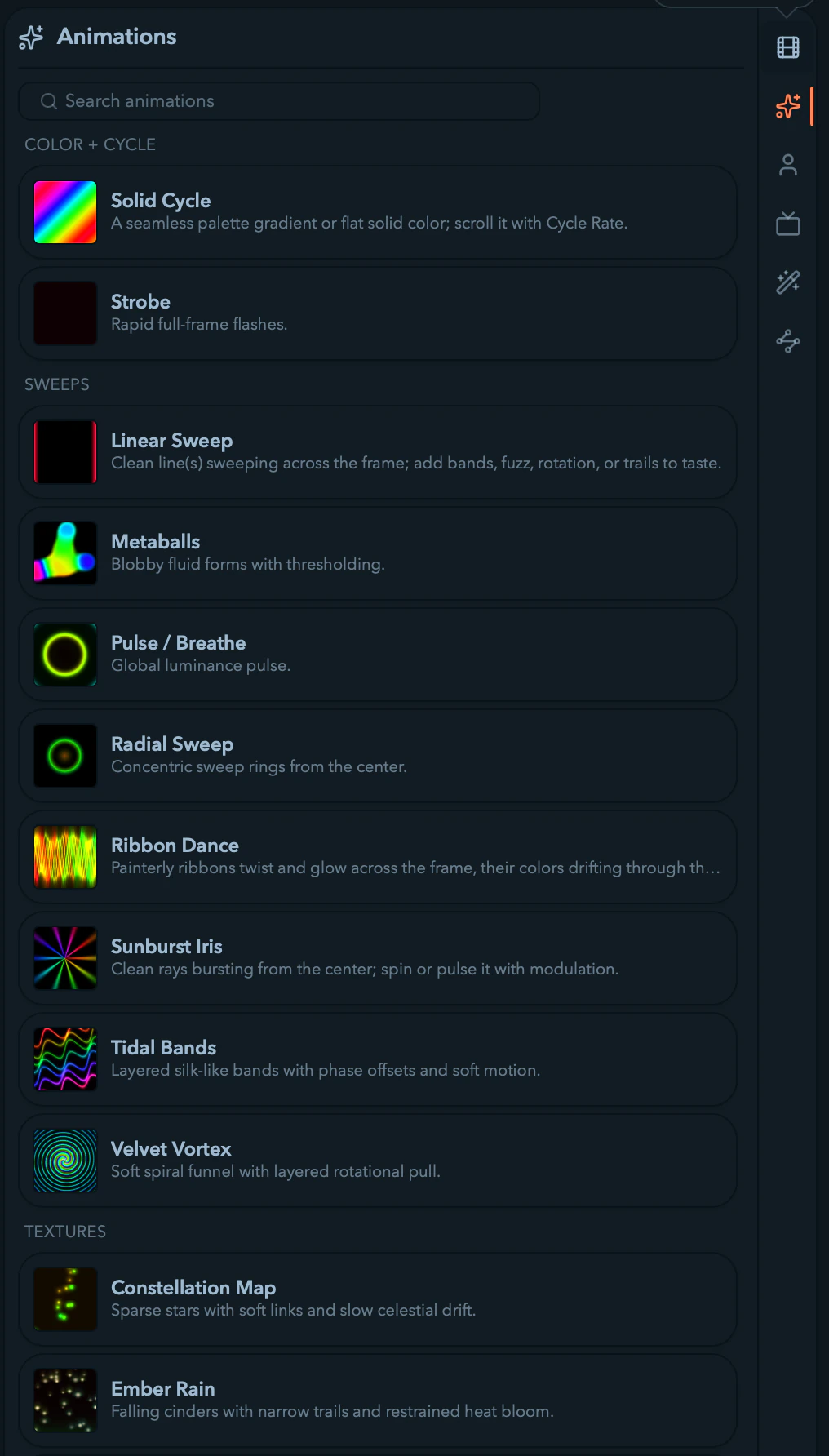
Browsing and adding animations
Open the Animations tab in the library drawer (F2). The built-ins sit under three group headers:
- Color + Cycle — palette-driven gradients and cycles.
- Sweeps — moving bands, rings, and rotating wipes.
- Textures — generative organic and energetic looks.
Search by name or description to filter (Cmd/Ctrl + F jumps straight to the search box). Empty groups disappear while a search is active.
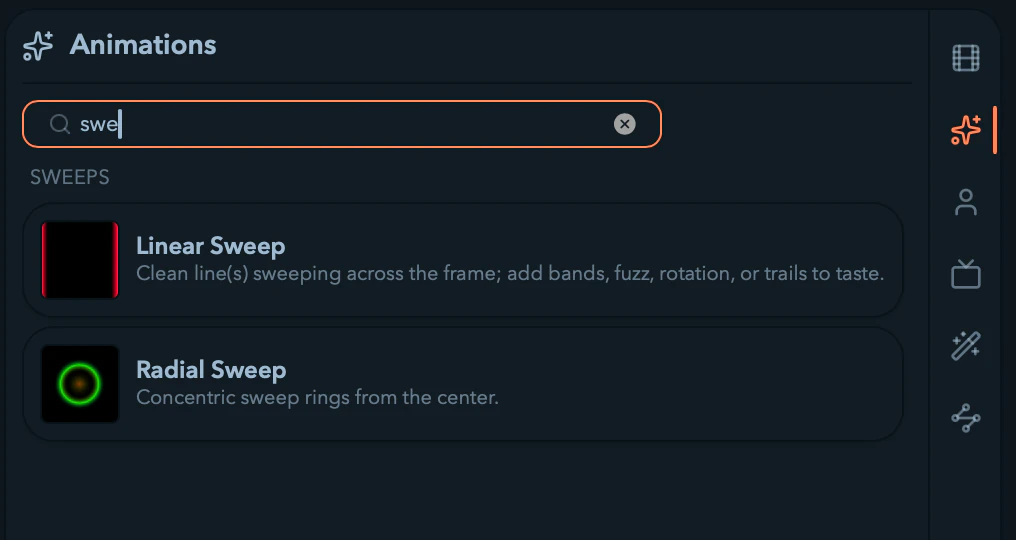
Three ways to place a tile: drag it onto a cell, double-click it to load into the selected cell, or focus it with the arrow keys and press Enter. Right-click a tile for Add to selected cell.
Imported clips live in a separate User animations tab (F3), which adds an Open folder button revealing the user animations directory on disk. See Custom Animations for installing and writing them.
The built-in catalog
Filament ships 20 built-in animations. Every one samples the active palette, so all of them re-tint when you switch palettes.
| Animation | Group | What it does |
|---|---|---|
| Solid Cycle | Color + Cycle | Smoothly cycles the palette across all pixels |
| Linear Sweep | Sweeps | Multi-band wavefront scanner with selectable waveform and afterglow trails |
| Radial Sweep | Sweeps | Concentric sweep rings from the center |
| Ribbon Dance | Sweeps | Painterly ribbons twist and glow, colors drifting through the palette |
| Sunburst Iris | Sweeps | Radial spokes around a breathing iris at the center |
| Tidal Bands | Sweeps | Layered silk-like bands with phase offsets and soft motion |
| Velvet Vortex | Sweeps | Soft spiral funnel with layered rotational pull |
| Perlin Noise Flow | Textures | Organic flowing noise fields |
| Metaballs | Textures | Blobby fluid forms with thresholding |
| Moire Interference | Textures | Overlapping angled waves that drift into interference bands |
| Prism Caustics | Textures | Refracted caustic light with crystalline color drift |
| Plasma Planet | Textures | Dark sphere ringed by radiating plasma wisps |
| Topographic Contours | Textures | Animated contour lines carved out of a drifting field |
| Liquid Chrome | Textures | Metallic liquid reflections with sharp highlights |
| Kaleidoscope Bloom | Textures | Mirrored sectors bloom and rotate around a bright core |
| Constellation Map | Textures | Sparse stars with soft links and slow celestial drift |
| Ember Rain | Textures | Falling cinders with narrow trails and restrained heat bloom |
| Fracture Lines | Textures | Jagged branching ridges pulse like lightning or cracked glass |
| Pulse / Breathe | Textures | Global luminance pulse |
| Strobe | Textures | Rapid full-frame flashes |
Tuning an animation live
Select a cell running an animation and its controls appear in the parameter panel beside the grid, under a rack named for the clip (for example, Solid Cycle). Parameters are scoped to the cell, so two cells running the same animation tune independently.
Parameters
Each animation exposes the knobs its author defined, rendered per type:
- Sliders for numeric knobs — sweep width, noise frequency, contrast, posterize bands, and so on. Numbers show their unit (degrees, hertz, a multiplier).
- Dropdowns for enums — for example, Solid Cycle's
Gradient Shape(linear,radial,sine,sweep). - Toggles for on/off switches.
- Color pickers for fixed-color knobs.
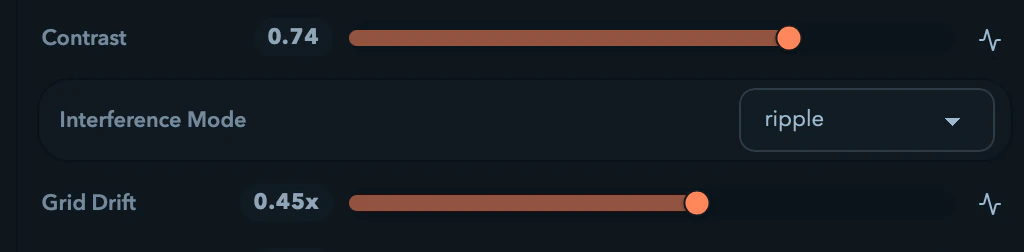
Self-animating rate knobs
Most generators include one or more rate knobs — Cycle Rate, Hue Drift, Flow Speed, Rotation Speed, Sweep Speed. These drive the animation's own motion: turn one up and the look flows, spins, or pulses on its own; set it to 0 and the motion freezes on a still frame. Because the motion is phase-accumulated rather than tied to raw clock time, it stays flicker-free and locks cleanly to tempo (see Clip playback).
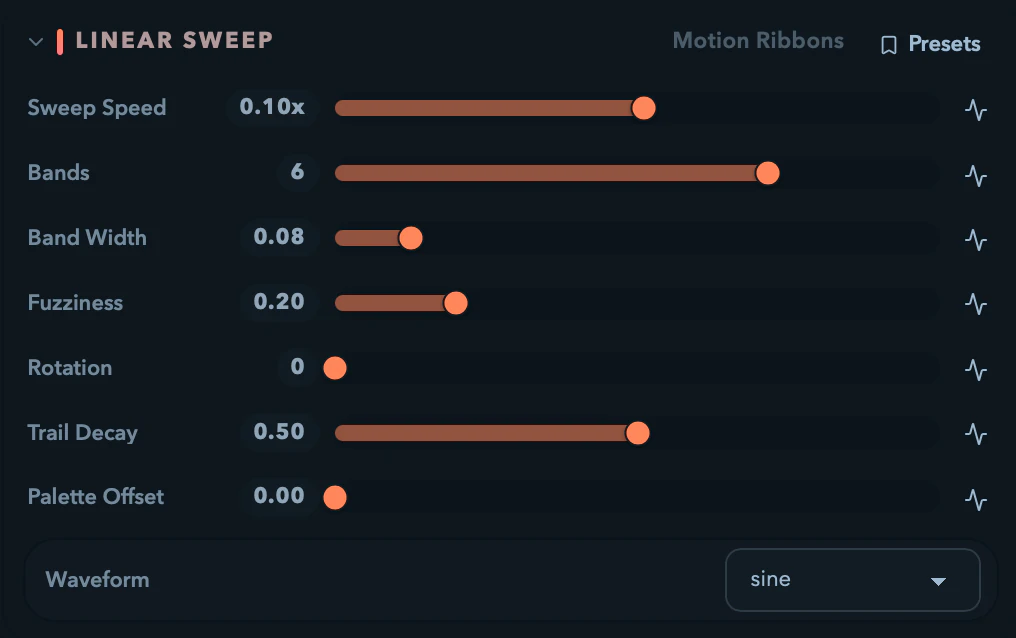
Presets
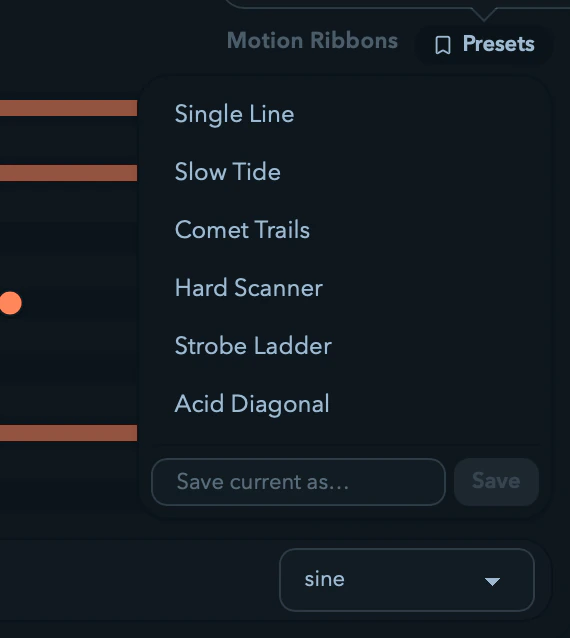
The clip rack's Presets button (bookmark icon) is at its top right. Each built-in generator ships six presets, ordered calm to wild, that set its full parameter state in one click — including the rate knobs, so a recall can flow or pulse and sync to BPM for free.
- Recall — click a preset name to apply it to the selected cell.
- Save your own — type a name in
Save current as…and press Save (or Enter). It's stored locally and appears after the built-ins, with a trash icon to delete it. Built-in presets can't be deleted.
Clip playback and Sync to BPM
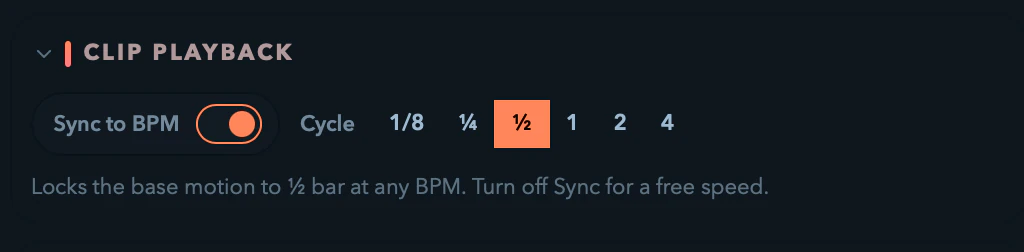
The Clip playback rack governs how fast the animation's base motion runs.
- Sync to BPM — a toggle, on by default. When on, the base motion locks to a musical division at any tempo, picked from a Cycle button row.
- Speed — when Sync is off, a free Speed slider replaces the Cycle row, ranging
0to4× (default1×).
The Cycle divisions are bar-equivalents and hold at any BPM:
| Button | Cycle length |
|---|---|
1/8 | 1/8 bar |
¼ | ¼ bar |
½ | ½ bar |
1 | 1 bar |
2 | 2 bars |
4 | 4 bars |
Driving parameters with audio, envelopes, or MIDI
Every numeric parameter row has a small modulation icon. Open it to choose how the value is driven:
- None — manual control only.
- Envelope / LFO — an envelope or low-frequency oscillator drives the value, with its own editor below the slider.
- Audio reactive — the value follows live audio, with a band/gain editor below the slider.
With a mode active, the manual fader becomes a live one showing the applied value bouncing inside its range. See Modulation for source setup.
Right-click any parameter for the same options plus reset, type-in, copy/paste of both the value and the modulation, and MIDI-learn this control — the quickest route to a hardware knob. You can also drag a parameter's label onto the master bar to pin it as a quick-access fader for the show. See MIDI Control.
Color palettes
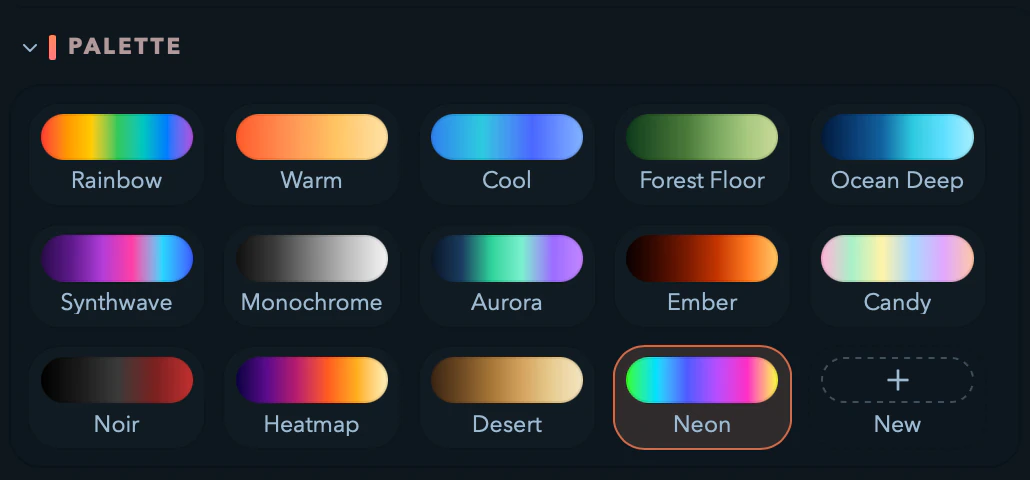
A palette is an ordered list of colors. Palette-aware animations sample along it as they run, so switching palettes re-tints every active look at once — no save step, no restart.
The palette switcher lives in its own Palette rack at the bottom of the parameter panel and appears only for animation cells. Click a chip and the look re-tints immediately; the active chip is highlighted with a bright border.
Filament ships fourteen built-in palettes (Rainbow is the default), and you can build your own, edit them mid-show without flickering, and share them as a single .filament-palette file. The full walkthrough — building, editing, importing, and designing palettes that read well on LEDs — is on the Palettes page.
Creating your own animations
Anyone can write an animation — a small WGSL shader plus a manifest describing its parameters. Drop it into Filament and it appears in the User animations tab with a hot-reload workflow that picks up edits live. The complete authoring guide — bundle format, parameter types, runtime contract, and install flow — is on the Custom Animations page.
The Player
The Player is Filament's live mixing workspace — a grid of layers and columns where you cue clips, blend looks, and drive your LEDs in real time.
Custom Animations
Install community animations or write your own — Filament's .filament-animation bundle format, the WGSL phase-and-beat runtime contract, and live hot-reload.